

Create and send an invoice: two minutes with Saldio
Create an invoice and send it by email: pick the customer, add line items, send. PDF with QR bill and an online link for your customer, step by step with video.
Contents
Writing an invoice should not take longer than the work it bills. Yet in many small businesses it eats half an evening: open the Word template, work out the amounts, save the PDF, write the email, remember the attachment, and finally copy everything into the accounting.
In Saldio it takes three steps and less than two minutes. This article walks through an example: Muster Malerei GmbH, a painting company, has repainted the office of Keller Elektro AG and sends the invoice.
The screenshots show the German interface of Saldio.
Step 1: Pick the customer
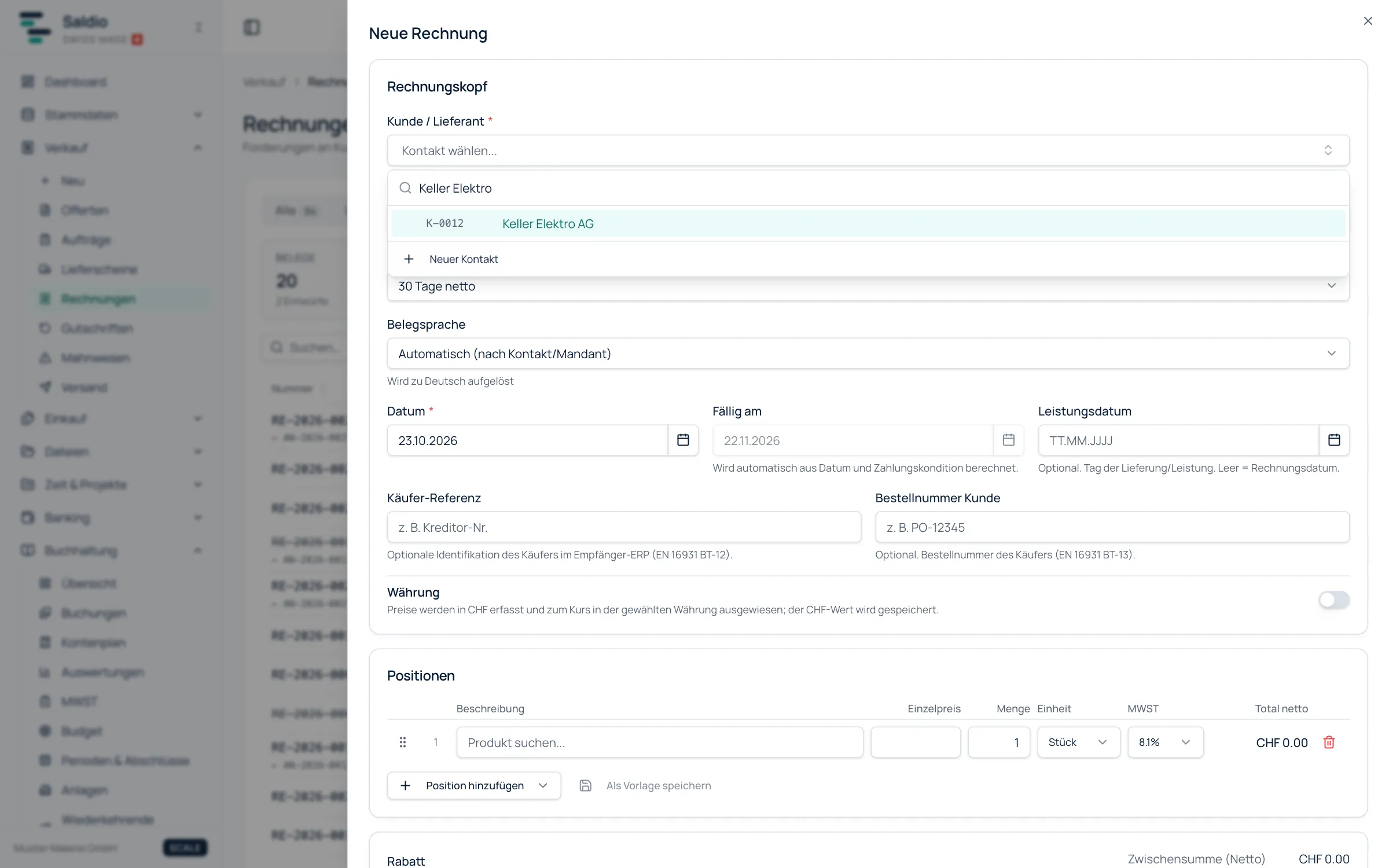
Under Sales → Invoices, New invoice opens the form. A few letters in the Customer field are enough to find Keller Elektro AG with its customer number. Address and language come from the customer record.
Date and payment terms are filled in. From “30 days net”, Saldio calculates the due date for you.
Step 2: Add line items
Muster Malerei bills 24 hours of painting at CHF 95 and a flat CHF 200 for paint and covering material. Each line gets a quantity, unit, price and VAT rate. Subtotal, 8.1% VAT and total appear right below: CHF 2,680.88.
Frequent items come from your product catalogue, or you save a combination as a template. Create saves the invoice as a draft.
Step 3: Send
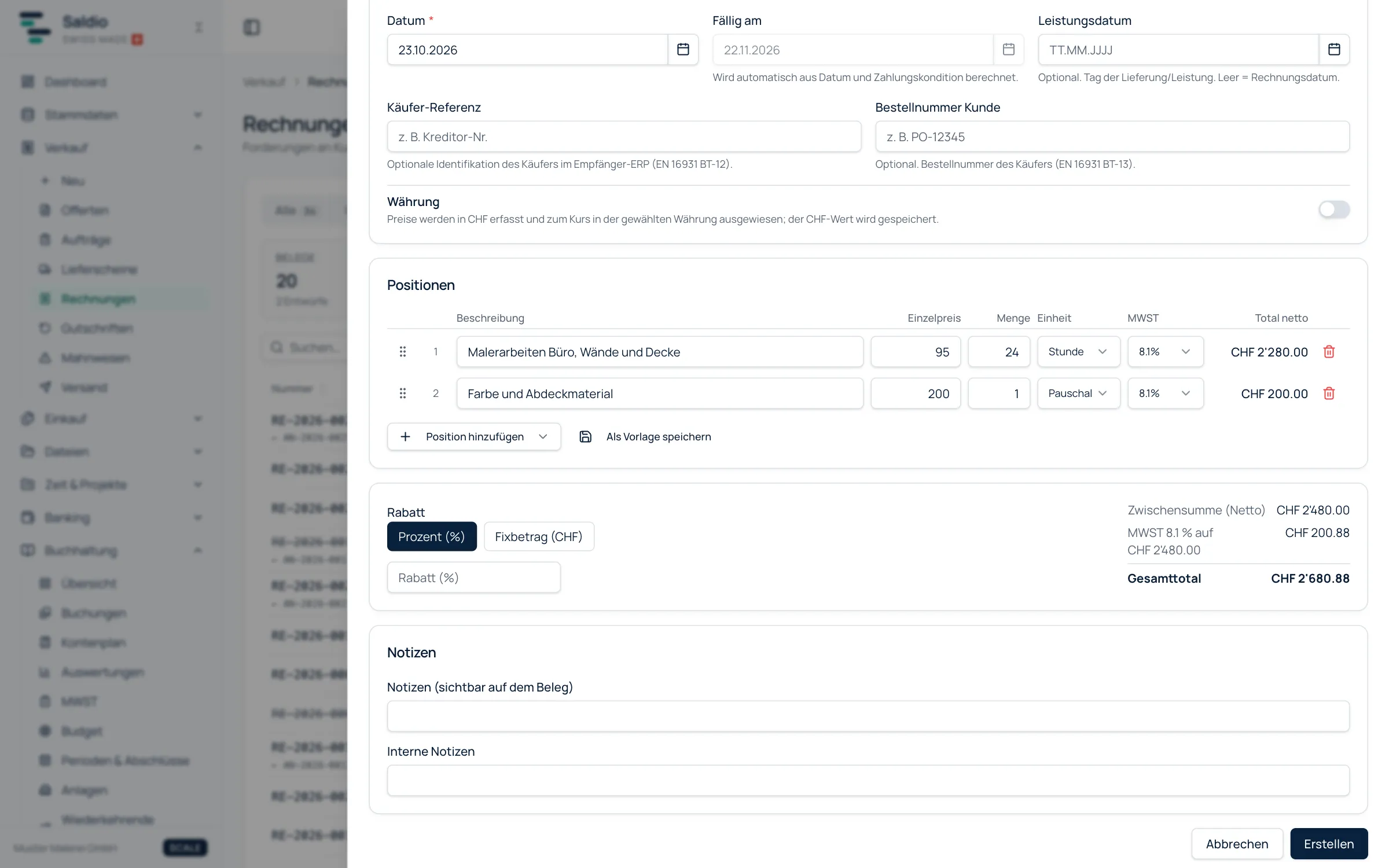
On the invoice, click Send by email. Recipient, subject and message are already filled in from a template you can adjust under email templates. The PDF is attached automatically, and Saldio adds a link to the online view.
One click on Send, and the invoice is on its way.
What your customer receives
The PDF with QR bill
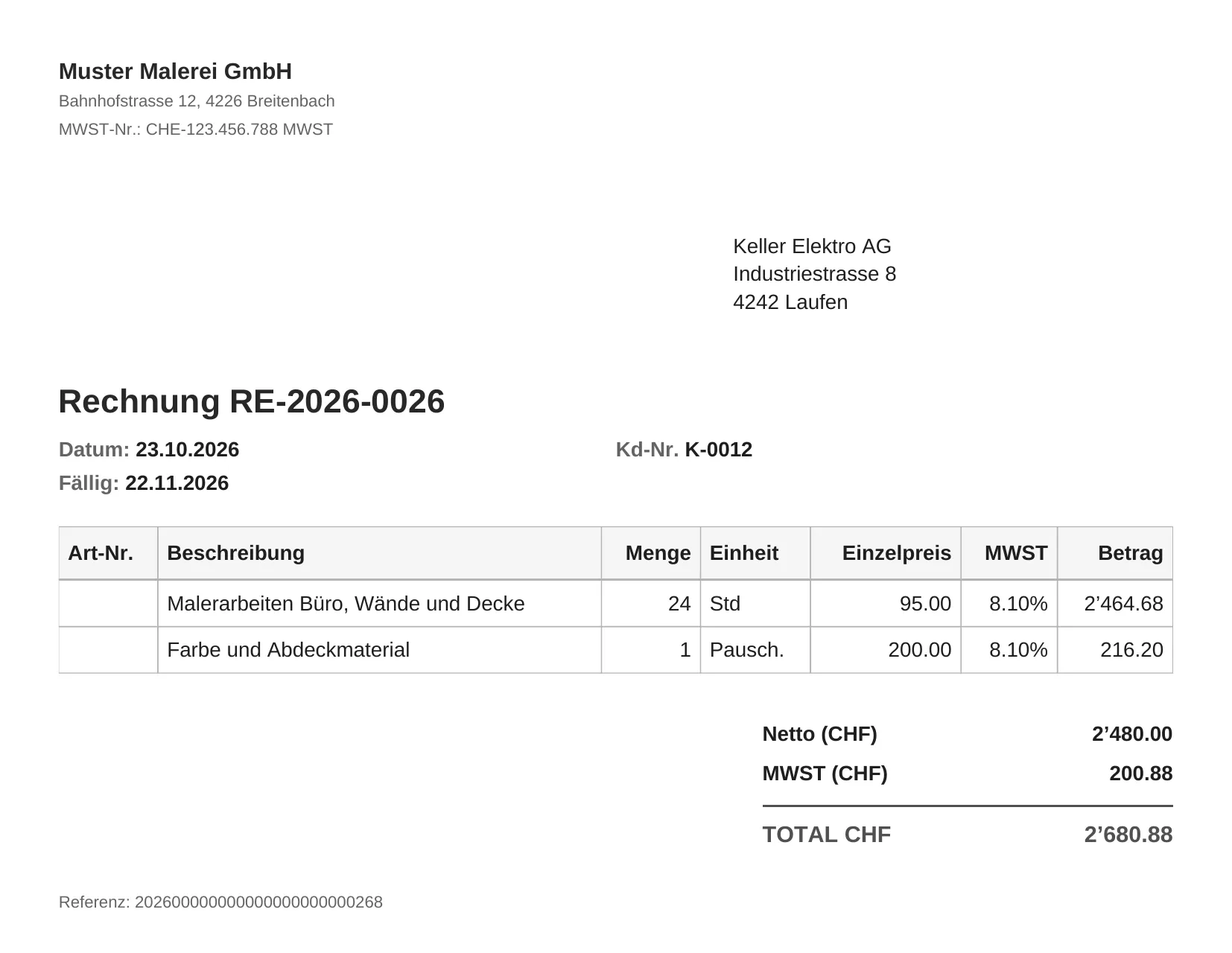
The PDF shows your company details, the customer’s address, every line item with VAT and the total. The second page holds the QR payment part with a QR reference unique to this invoice.
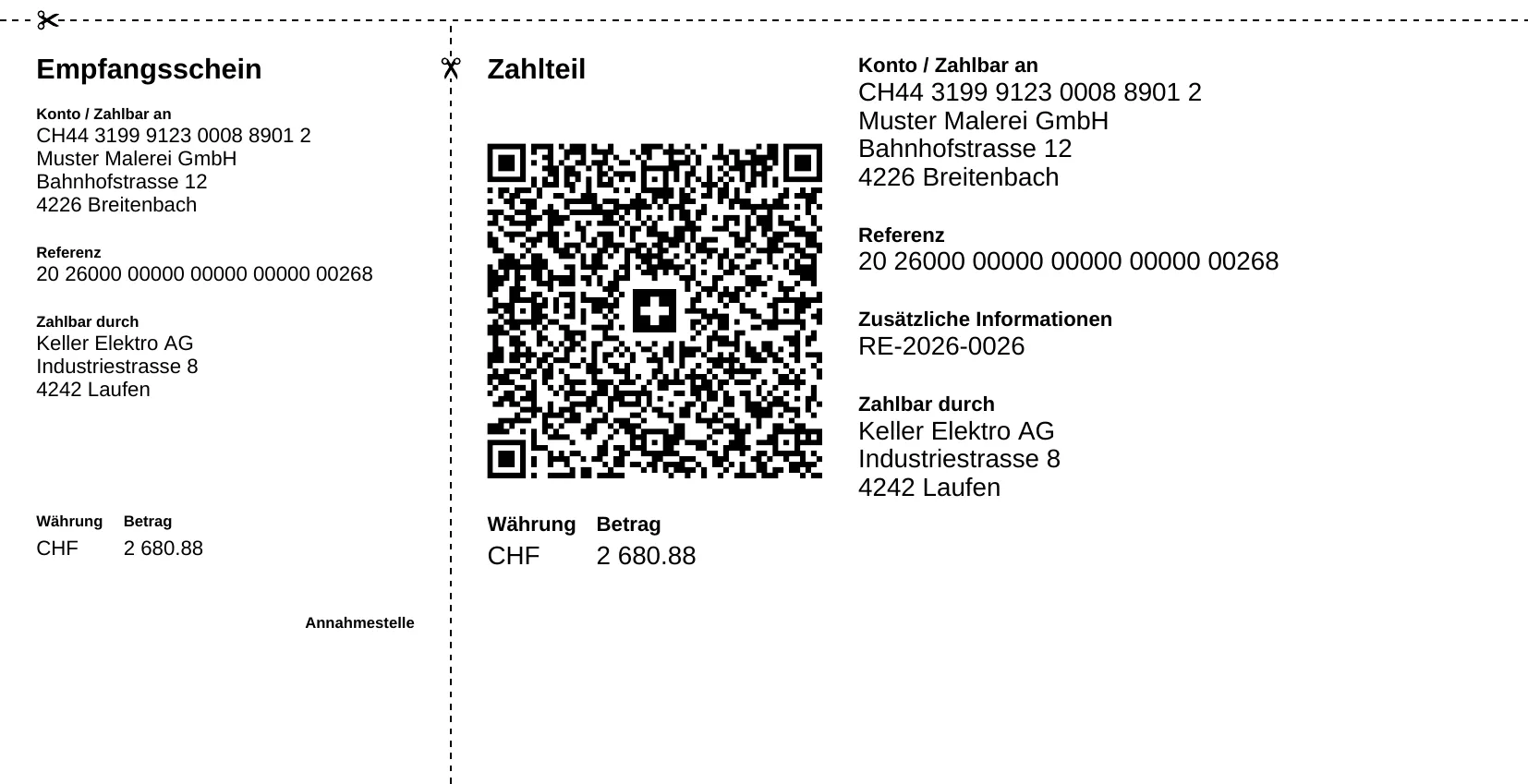
Your customer scans the code with their banking app, and amount and reference are filled in. When the money arrives, the reference matches the payment to its invoice automatically. Why this works so reliably is explained in How to create a QR bill.
The online view
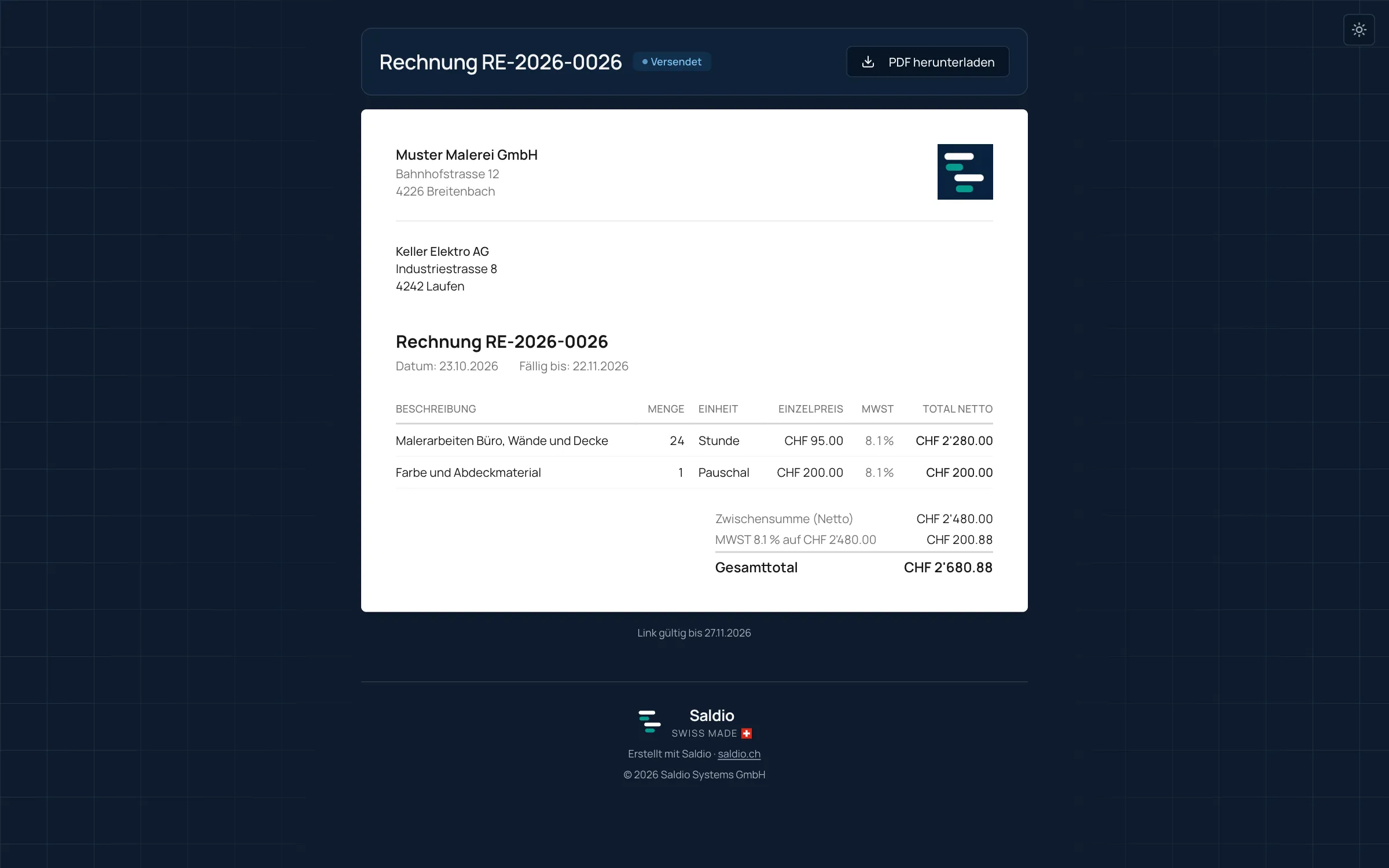
The link in the email is even more convenient. It opens the invoice in the browser, without a login or an app. From there, your customer downloads the PDF with one click, even if the attachment got stuck in a spam filter or a full inbox. The link expires and can be revoked at any time.
And you know what happened
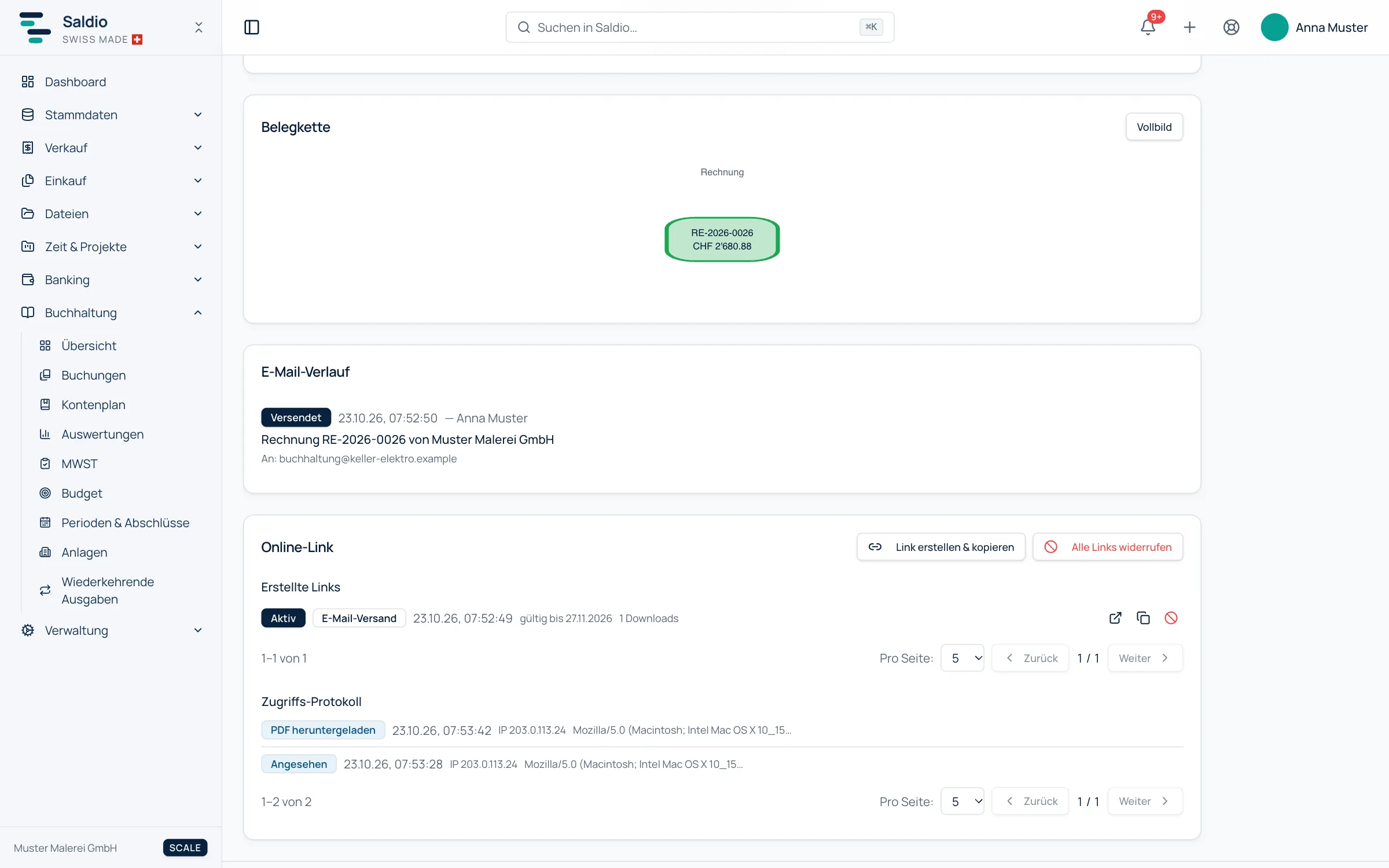
Saldio keeps an access log on the invoice. You see when it was viewed and when the PDF was downloaded. No more “Did you get my invoice?”, and before sending a reminder you know whether the invoice was opened at all.
It is already booked
Sending issues the invoice: the receivable is posted to the general ledger, the PDF is archived unchanged and the status switches to Sent. No copying into a second program, no list to keep up to date. What happens next, from payment to cancellation, is covered in How invoicing works in Saldio.
Frequently asked questions
- Does my customer need a Saldio account?
- No. They receive a normal email with a PDF attachment. The link to the online view works without a login or an app.
- Can I change the email text?
- Yes. Subject and message come from a template you edit under Administration → Settings → Email templates. In the send dialog you can still change the text for a single invoice and add Cc or Bcc.
- How long is the online link valid?
- The link has an expiry date, in the example a little more than a month past the due date. The invoice shows how long it is valid, and you can revoke it or create a new one at any time.
- Can I still change an invoice after sending it?
- No, and that is on purpose. A sent invoice is booked and archived. Corrections go through a cancellation and a new invoice, so your accounting and your customer always see the same version.
- Can I send invoices by post?
- Yes. The dispatch centre under Sales → Dispatch issues several invoices at once and prepares them as a ZIP for printing.