

How CAMT import works in Saldio
From bank export to matched payment: what CAMT.053 and CAMT.054 contain and how Saldio reads them, splits batch credits and skips duplicates.
Contents
A bank statement as a PDF is made for people. Date, text, amount — all readable, none of it machine-usable. Booking from it means retyping: line by line, reference by reference.
Swiss banks also deliver the same information in structured form, as XML following the ISO 20022 standard. The messages for account movements are called CAMT — Cash Management. They carry every payment with amount, value date, counterparty and payment reference in separate fields.
Saldio reads these files. This article shows what happens along the way — from the upload to the bank line waiting to be matched.
CAMT.053, CAMT.054 and CSV
E-banking usually offers several export formats. Saldio accepts three of them:
| Format | What it is | What Saldio reads from it |
|---|---|---|
| CAMT.053 | account statement for a period, typically a day or a month | all entries with details, the statement period, the IBAN |
| CAMT.054 | individual credit or debit notifications | the same entry details, per notification |
| CSV | table export from common Swiss banks such as Raiffeisen, UBS or PostFinance | date, amount, text — without the structured extra fields |
The difference between CAMT and CSV is not cosmetic. Only from CAMT does Saldio read the counterparty with name and IBAN, the bank’s plain-text bank text and the bank’s transaction code. Those are exactly the fields reconciliation needs to recognise a supplier payment by IBAN or to apply a bank rule to a counterparty.
Uploading
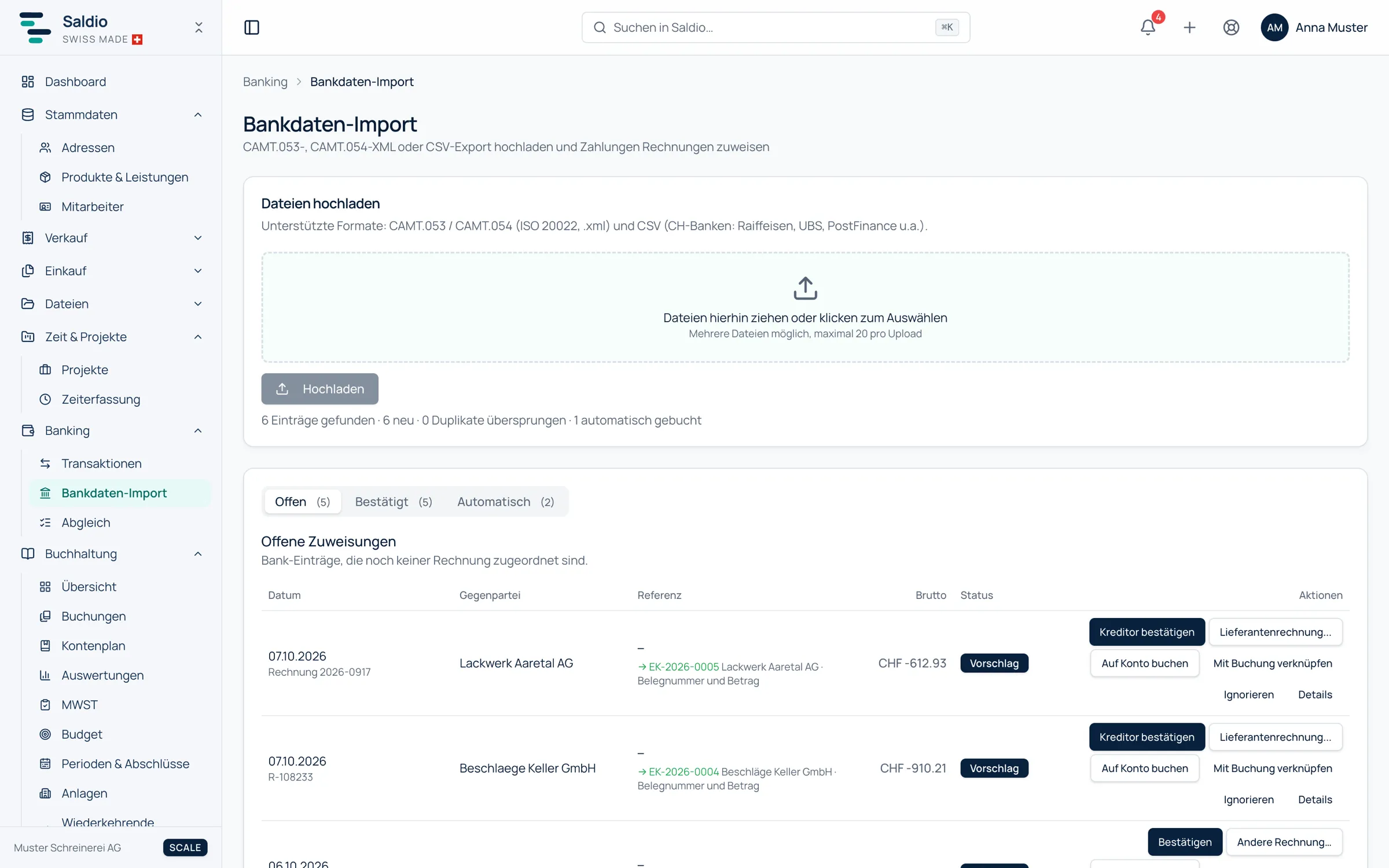
The import lives under Banking → Bank import. In the Upload files area, drag one or more files into the field or select them — up to 20 at once, .xml and .csv only.
Saldio reads the files one after the other and shows the progress as File 2 of 5. At the end there is a summary across all files:
143 entries found · 118 new · 25 duplicates skipped
Plus, where applicable, how many lines were booked automatically right away. If a file fails — for instance because it contains no bank format at all — Saldio names the error for that file and still reads the others.
Which money account?
Every statement belongs to a money account — the bank account, the company card or another account set up with IBAN and ledger account under Settings → Money accounts & payment methods. Saldio finds it like this:
- by the IBAN in the statement, if it matches a stored money account,
- otherwise by the only bank account, if there is just one,
- otherwise Saldio asks for the Money account for this statement — and remembers the IBAN for the next upload.
If you run two bank accounts, you answer the question exactly once per account.
What becomes of an entry
Every entry in the statement becomes a bank line with date, amount, direction, value date, QR / payment reference, remittance information and, with CAMT, counterparty, counterparty IBAN, bank text and transaction code.
In two cases Saldio does more than copy the file line by line:
Batch credits. Many banks credit several QR payments as one single credit — the statement shows CHF 1,840.00, behind which are three customer payments of CHF 620.00, CHF 980.00 and CHF 240.00. Saldio splits such a batch entry into individual lines with their own amount and their own QR reference. Only that way can each of the three payments find its invoice.
Foreign currency. A bank line in euros or dollars gets its franc equivalent at the FOCBS rate of the value date during the import. Booking and matching use that value; the original amount stays visible. If there is no rate for that day, the line stays open and says so.
Duplicates and import history
Bank exports overlap. The monthly statement contains the days you already read in last week as daily statements; someone uploads the same file twice by mistake. Saldio recognises entries it already knows and skips them — they show up as duplicates in the summary and do not appear a second time in the pending assignments.
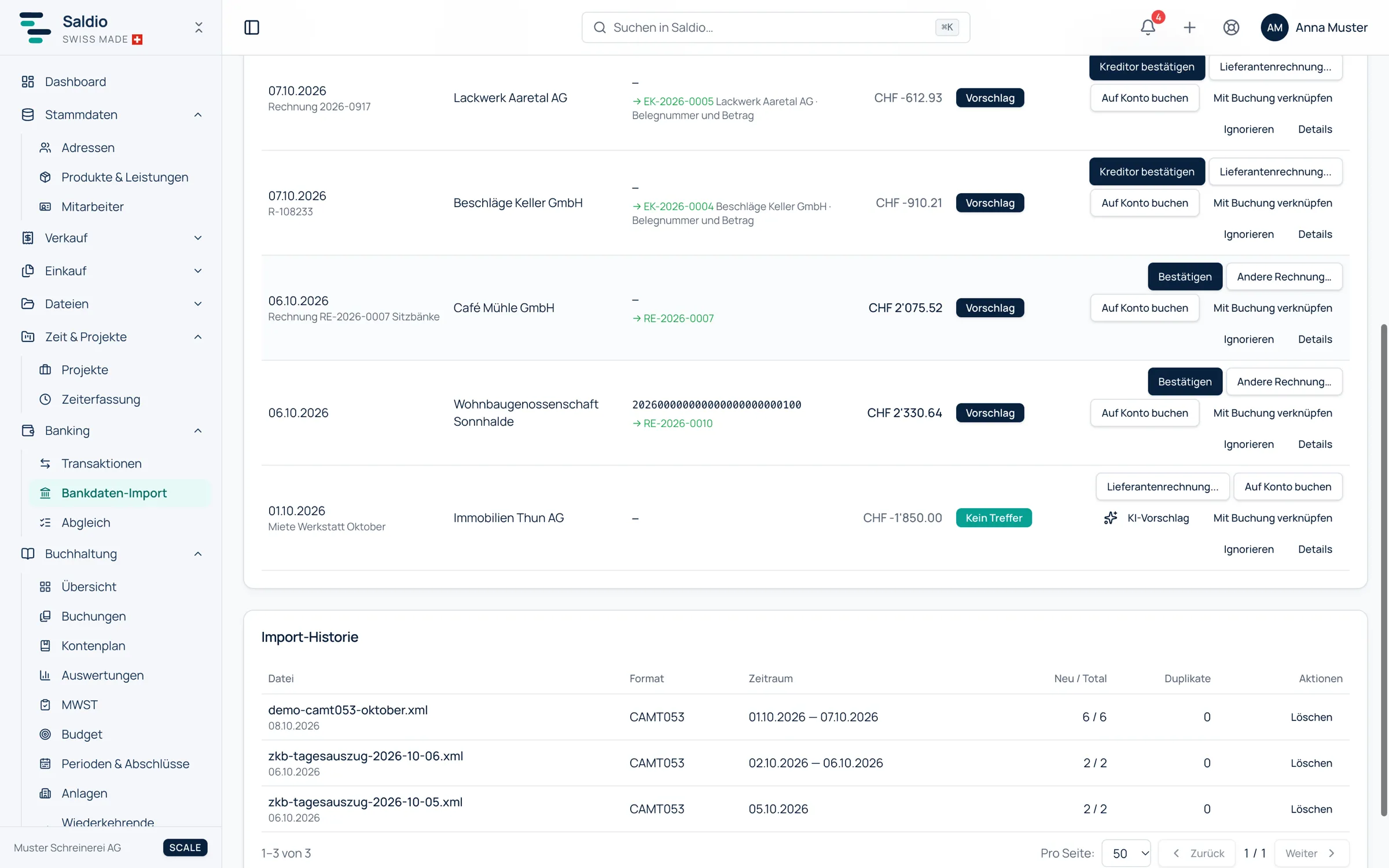
The Import history lists every file with format, Period, New / Total and duplicates. That is more than a log: if you want to check that a month was imported without gaps, you line up the periods. For CAMT.053 Saldio takes the period from the statement itself; if it is missing, Saldio derives it from the entry dates. A wrong import can be deleted in the history.
Right after the import
Some lines are already done after the upload. Where payment reference and amount match exactly one open document, or a bank rule with Book automatically applies, Saldio books the line immediately — visible in the Automatic tab, with its reason, and reversible in bulk there.
Everything else lands in the Pending assignments and on the Reconcile page, with a suggestion and the reason for it. What happens there — confirming, differences, combined payments, bank lines without a document — is covered in the article on bank reconciliation.
What Saldio deliberately does not do
- No fetching from the bank. The file is exported in e-banking and uploaded to Saldio. Saldio does not access the bank account itself.
- No PDF statements. Saldio reads CAMT.053, CAMT.054 and CSV — not other formats such as PDF statements or MT940.
- No balance takeover. Saldio takes the individual movements, not the bank’s closing balance. Whether the balances agree is checked in bank balance reconciliation.
- No duplicate lines. Entries already known are skipped and not offered again.
- No automatic booking with tolerance. The import only books exact reference matches and rules with Book automatically, and never into a locked period.
Conclusion
CAMT import is the unspectacular part of banking, but the one everything else depends on. It brings the bank movements into the system in structured form, assigns them to the right money account, splits batch credits and leaves out duplicates.
The routine is short: export CAMT.053 in e-banking, upload it under Bank import, read the summary. After that, part of it is already booked, and the rest waits in Reconcile with a suggestion.
CAMT import is included in every Saldio plan, see Pricing. Everything else that comes with it is in the feature overview. Why reconciliation pays off is explained in the guide Automating accounting.
From order to balance.