

How the Dashboard in Saldio Works
Income, expenses, open and overdue invoices, this quarter's VAT and automatic insights on one page: how the dashboard in Saldio is built.

Contents
Monday morning, first question: how are we doing? In many SMEs the answer is spread over five places. E-banking shows the account balance, the invoicing tool the open invoices, a spreadsheet the overdue ones, the accounting system the VAT — and gut feeling the rest.
If you have to piece that together every day, at some point you stop doing it. And then an overdue invoice only gets noticed when it is ninety days old.
In Saldio, the dashboard is the page you land on after signing in. It answers at a glance what came in, what went out, what is open and what is coming up. This article shows what is on it and where the figures come from.
One time range for everything
At the very top you choose the Time range. The options are this and last week, this and last month, this and last quarter, this and last year, the last 30 days and the last 12 months. All tiles and charts that depend on a period follow this single choice.
That is deliberate. A dashboard where income shows the month and the chart shows the year invites wrong conclusions. In Saldio the heading states which range applies — for example Overview — This quarter.
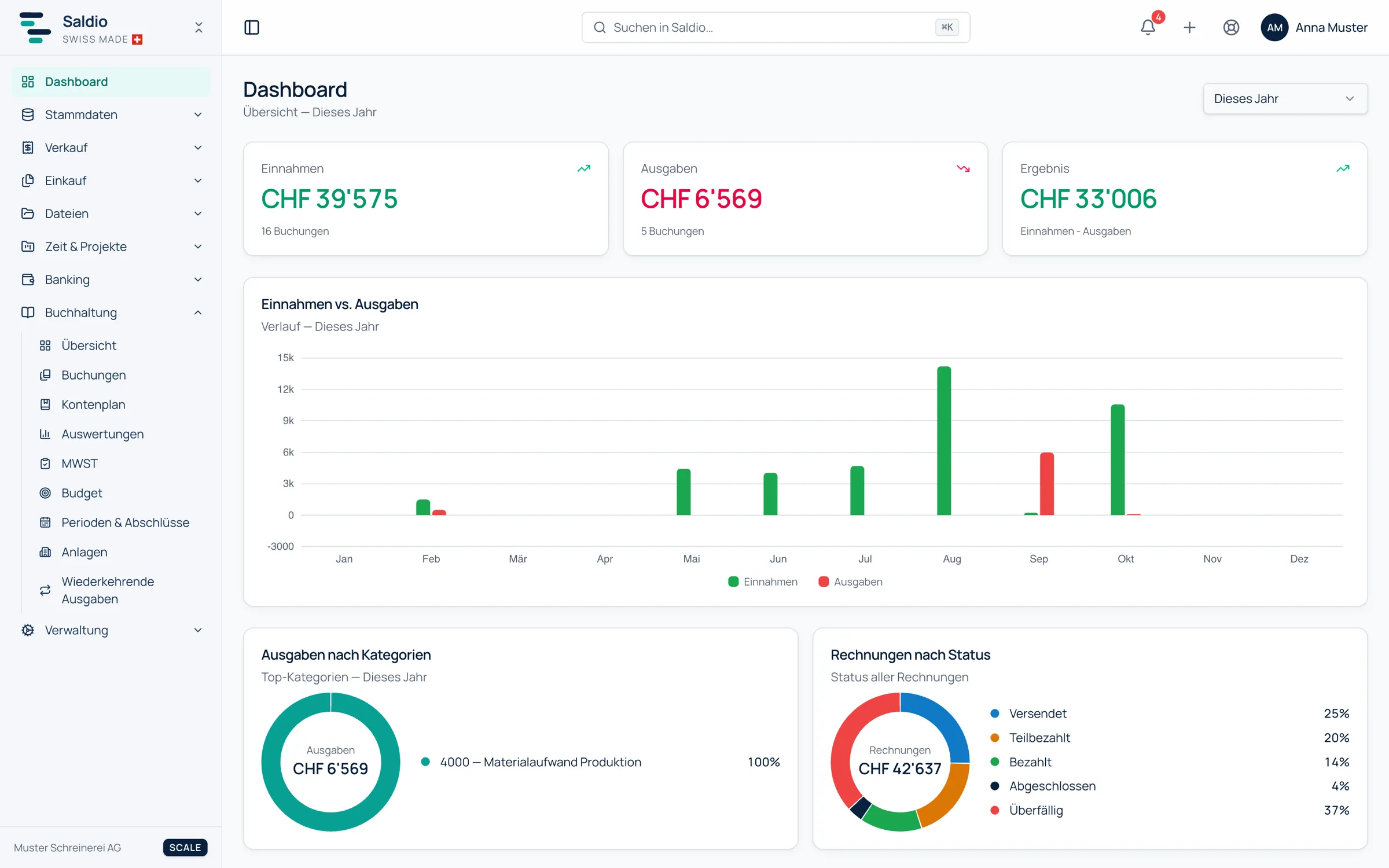
Income, expenses, result
The first row shows three figures:
- Income in the selected range
- Expenses in the selected range
- Result as the difference: income − expenses
Each figure carries the change versus the previous period. If you chose This month, you compare with last month; with This year, with the previous year.
Open invoices, dunning, VAT
The second row shows what is open. Each tile leads with one click to where you can act:
| Tile | Content | Click leads to |
|---|---|---|
| Open Invoices | total and count | invoice list |
| Overdue Invoices | total and count | Dunning |
| VAT Liability or VAT Credit | amount for the current period, status Open or Submitted | VAT Statement |
The VAT tile follows the settlement method: under the effective method it shows the current quarter (for example Q4 2026), under the net tax rate method the current half-year. If the result is a credit, the label changes from VAT Liability to VAT Credit.
How an overdue invoice becomes a reminder is covered in the article on dunning.
Three charts
Below, three charts go deeper:
- Income vs. Expenses — the trend over the selected range
- Expenses by Category — the top categories in the range; Saldio groups smaller items under Other, and expenses without a category appear together as Uncategorised
- Invoices by Status — how all invoices are distributed by status, regardless of the range
On top of that come the Recent Transactions: the ten most recent entries with amount and VAT rate.
Insights: observations, not forecasts
Next to the figures, Saldio shows Insights when a pattern is visible. There are exactly these:
| Insight | When it appears |
|---|---|
| Income rising over n periods | income has risen at least twice in a row |
| Income falling over n periods | income has fallen at least twice in a row |
| Highest expenses in period | the period with the largest expenses in the range |
| Result currently positive / negative | sign of the result |
An example: range This quarter, income in July CHF 18,000, in August CHF 21,000, in September CHF 24,000. Saldio counts backwards from the most recent period: September above August, August above July. The dashboard shows Income rising over 2 periods.
If there is nothing to say, the dashboard says exactly that: No notable trends. The insights are observations derived from the figures — not a forecast and not a recommendation.
Notifications: the bell
On every page, not just the dashboard, the notification bell sits to the right of the search, with a counter for unread items. It reports:
- when a customer opens a shared quote, order, invoice, delivery note or credit note for the first time
- when a customer accepts or declines a quote or order online
- overdue invoices
- a VAT return that is due, from the first day of the new quarter — or the new half-year under the net tax rate method — with the submission date
- expense accounts over budget, with the percentage
A click leads straight to the document, the VAT period or the budget and marks the entry as read. Mark all as read does that for every entry at once.
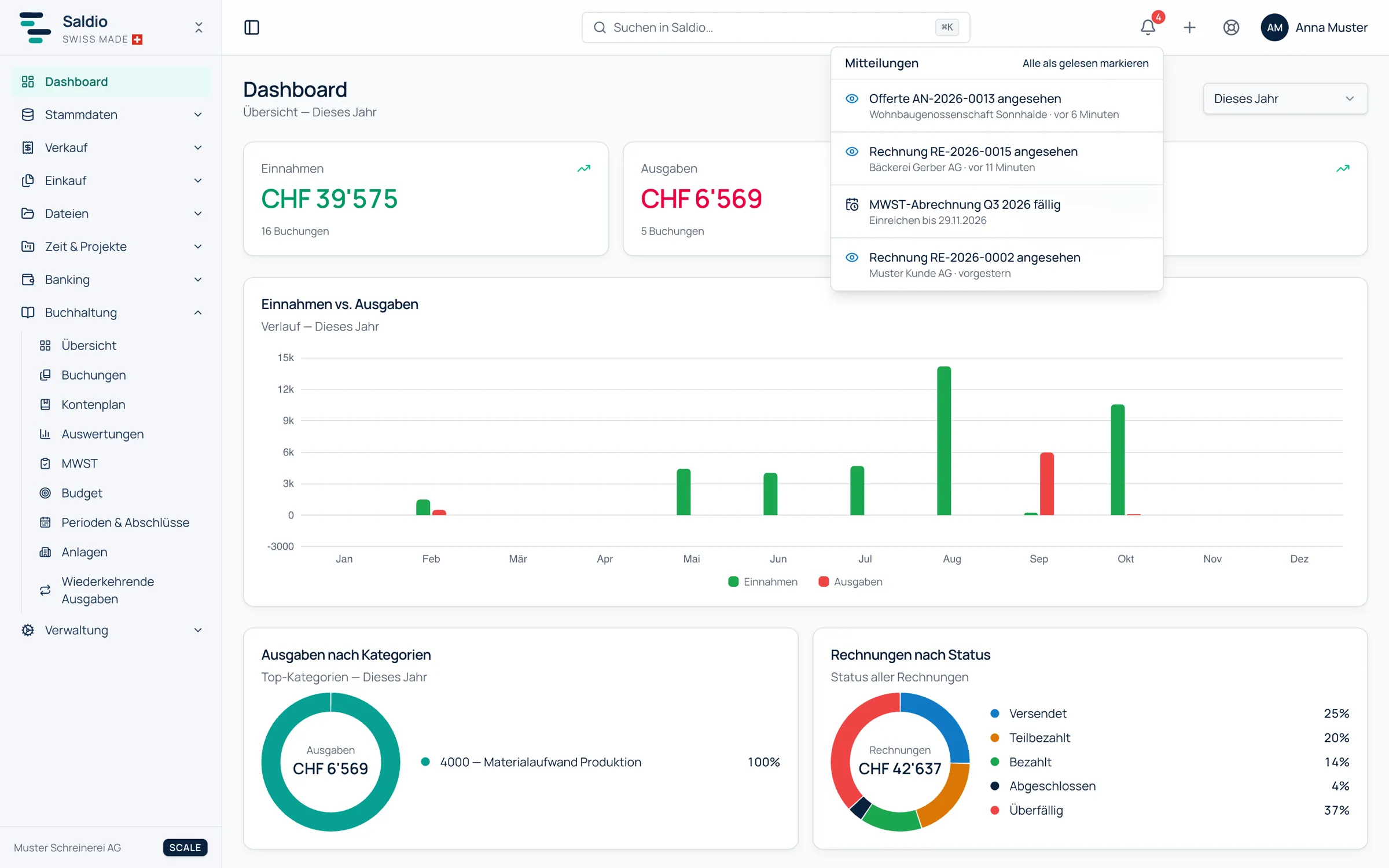
Notifications are per user and only for users with read access to the module concerned. They are deleted after 30 days; resolved events such as a paid invoice or a settled VAT period disappear earlier.
The budget notification requires a budget — how that works is described in the article on budget planning.
Who sees what?
The dashboard itself is open to all users. What appears on it depends on the enabled modules and permissions: anyone who may not see invoices does not get the invoice tiles either.
What Saldio deliberately does not do
- No forecast and no recommendation. The insights describe what is in the figures and stop there.
- No figures of its own. The dashboard calculates from the same invoices and entries as the rest of Saldio. Nothing is maintained only here.
- No guessed categories. Expenses without a category stay visible as such.
- No notifications without permission. If you may not read a module, you get no notifications from it.
- No permanent archive. Notifications are pointers for now; after 30 days they are gone.
Conclusion
In Saldio the dashboard is not a report you run but the state you see after signing in. One time range for all figures, tiles that lead straight to the next task, and insights that only speak when there is something to say.
If you want to go deeper — liquidity ratios, equity ratio, EBITDA —, that is in accounting. The article on financial KPIs shows how they are calculated.
From order to balance.