

How Digital Customer Files Work in Saldio
A customer's revenue, paid and open amounts and sending history on one page: how Saldio builds the digital customer file – straight from the documents.
Contents
The customer calls and asks whether anything is still open. A simple question — and in many businesses a quarter of an hour of work: filtering the receivables list, leafing through invoice folders, checking the outbox to see whether the last invoice was sent at all.
The information is all there. It just is not in one place.
In Saldio, the customer file is the detail view of a contact: one click on an address and the most important answers are on a single page. This article shows what is there, where the figures come from and where the file deliberately stops.
Getting to the file
Two paths lead to the customer file. Under Master Data → Addresses, clicking a row opens the detail view. Faster still is the global search with ⌘K or Ctrl K: type the company name, last name, customer number or email address, press Enter. How the search works in detail is described in the article on document search.
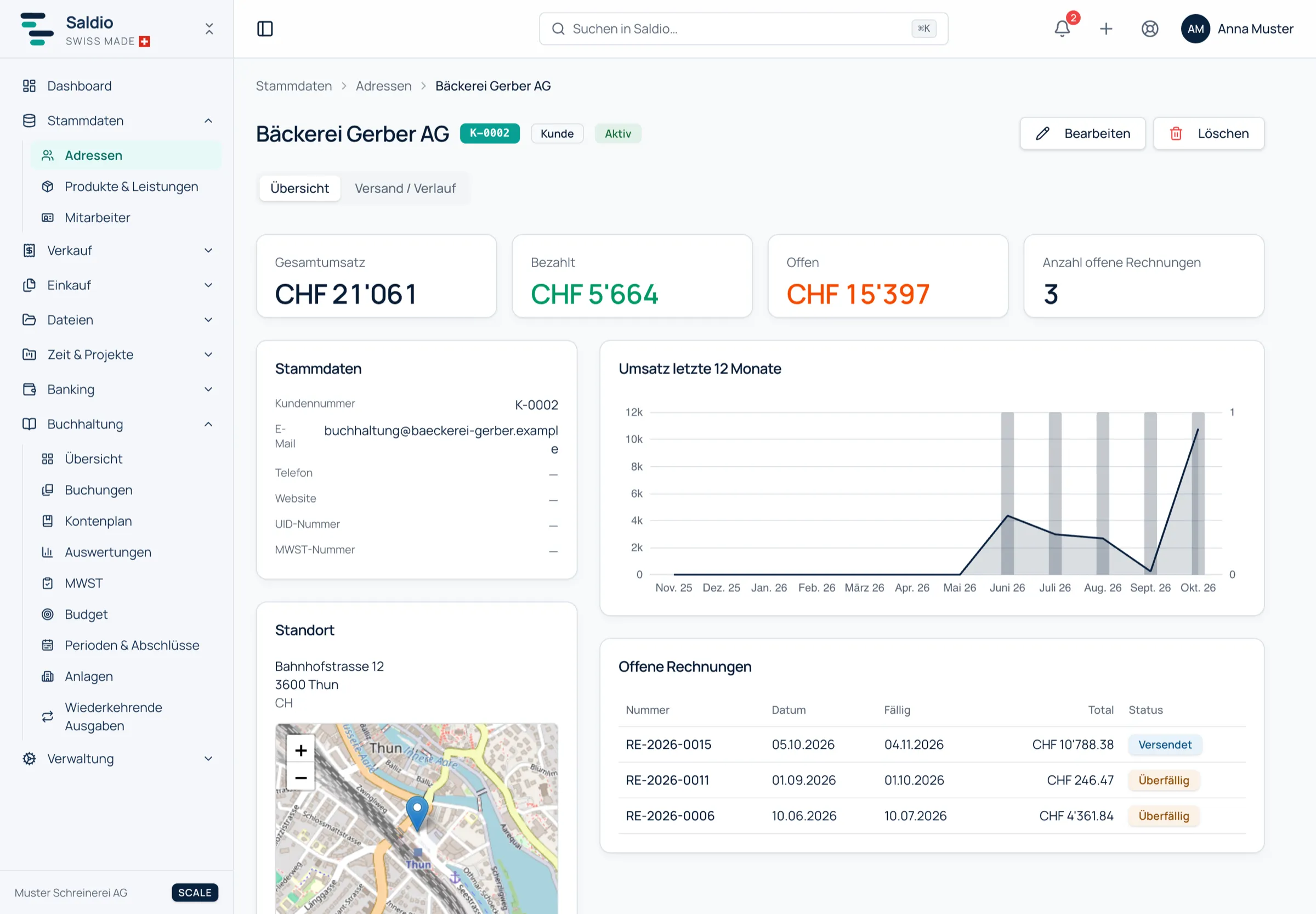
The page header shows the name, the customer number, the type — customer, supplier or both — and whether the contact is active. Next to it are Edit and Delete. Below, the file is split into two tabs: Overview and Sent / History.
Four key figures
At the top of the overview are four figures:
- Total revenue — the sum of all invoices to this customer
- Paid — of which the invoices with status Paid
- Open — the rest
- Number of open invoices
Only invoices count. Drafts and cancelled invoices stay out, as do quotes and orders. An example:
| Document | Status | Amount (CHF) | counts as |
|---|---|---|---|
| RE-2026-0098 | Cancelled | 500.00 | — |
| RE-2026-0101 | Paid | 2,400.00 | Paid |
| RE-2026-0117 | Sent | 1,150.00 | Open |
| RE-2026-0123 | Draft | 800.00 | — |
The file then shows: total revenue CHF 3,550, paid CHF 2,400, open CHF 1,150, one open invoice. The draft only counts once it has been issued — until then the customer does not know about it.
Master data and location
On the left below the figures is the Master data card: customer number, email, phone, website, UID number and VAT number. Email and phone are clickable and open the mail client or the call directly. Below follow the payment information with IBAN, the profile link for addresses from search.ch, and the notes on the contact.
The Location card shows the postal address and, if Saldio could locate it, a map. Open in Google Maps shows the place directly in Google Maps. For field staff who need the address just before an appointment, that is the shortest route.
These details are not maintained here but in the address form behind Edit. What belongs there is covered in the article on customer management.
Revenue history and open invoices
To the right are two cards that break the figures down.
Revenue last 12 months shows the invoiced amount and the number of invoices month by month. Seasonal customers stand out just as clearly as a regular who has not ordered anything for four months.
Open invoices lists every unpaid invoice with number, date, due date, amount and status. Clicking the row opens the invoice itself — with PDF, payments, reminders and the document chain that shows which quote and which order it came from.
That answers the question from the start in seconds: read the Open figure, open the invoice if needed and give the number.
Sent / History
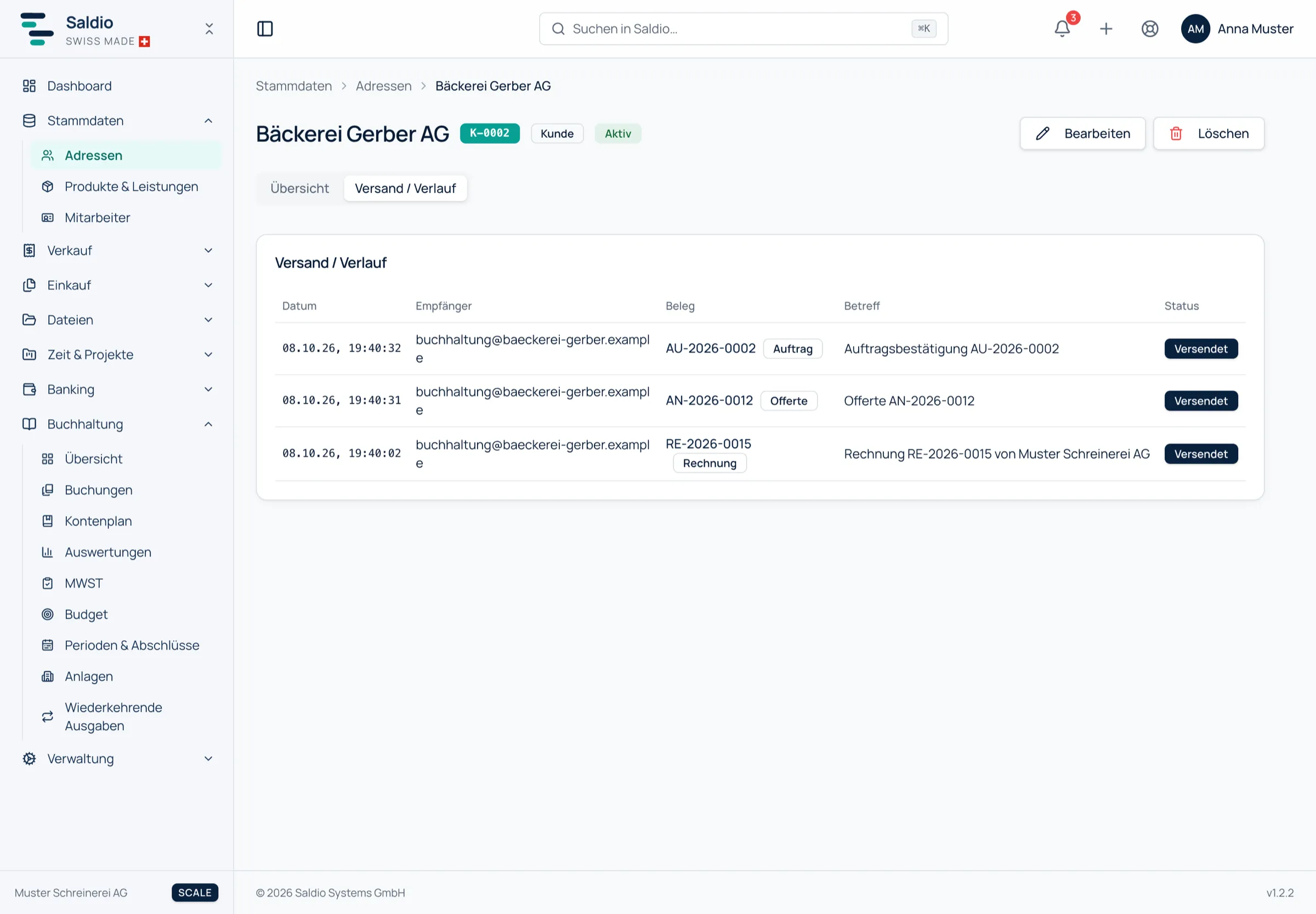
The second tab answers the question that usually follows “What is open?”: “Did you actually send that to me?”
Sent / History lists every email Saldio has sent for a document of this contact — invoices, quotes, orders, delivery notes, credit notes — with date, recipient, document, subject and status. What can be traced from it, down to whether the customer opened the document online, is described in the article on contact history.
The same file for suppliers
A supplier has the same detail view, looking the other way: Total expenses instead of total revenue, Expenses last 12 months and Open supplier invoices. Clicking an open supplier invoice opens it in Purchasing. If a contact is both customer and supplier, the file shows the sales side.
The supplier figures only appear if the tenant uses the purchasing module and the user has access to it. Someone who only maintains master data sees master data and location for suppliers — but no amounts.
What Saldio deliberately does not do
- No second data store. The file stores nothing of its own. All figures are calculated from the documents when it is opened. Once a payment from bank reconciliation is booked on the invoice, the file is correct immediately.
- No quotes in revenue. Quotes and orders are intentions, not receivables. They do not appear in the figures or in the revenue history.
- No drafts. A document that has not been issued does not count, neither as revenue nor as open.
- No deleting with history. A contact with invoices cannot be deleted. The file stays complete for as long as the documents exist.
Conclusion
The digital customer file in Saldio is not a folder someone puts things into, but a view of what happens anyway: invoices are issued, payments come in, emails go out. The contact detail view pulls this onto one page and keeps it current without anyone having to update it.
For the phone call with the customer, that means: one search, one click, and the answer is there.
From order to balance.