

How Time Tracking Works in Saldio
Time entries in minutes on the project, four statuses from draft to invoiced and an assistant that builds the invoice: how hours get invoiced in Saldio.

Contents
An hour that is not recorded is not billed. An hour reconstructed from memory on Friday afternoon usually is not billed in full either.
The second leak sits between recording and invoicing. The hours are in a spreadsheet, the invoice is created in another program, and someone copies numbers across in between. Has the entry from the 14th already been billed? And the one from the 15th?
Saldio connects both: time entries run against a project, carry a status, and the invoice is built from the released entries. This article follows the path from the recorded minute to the draft invoice.
A time entry
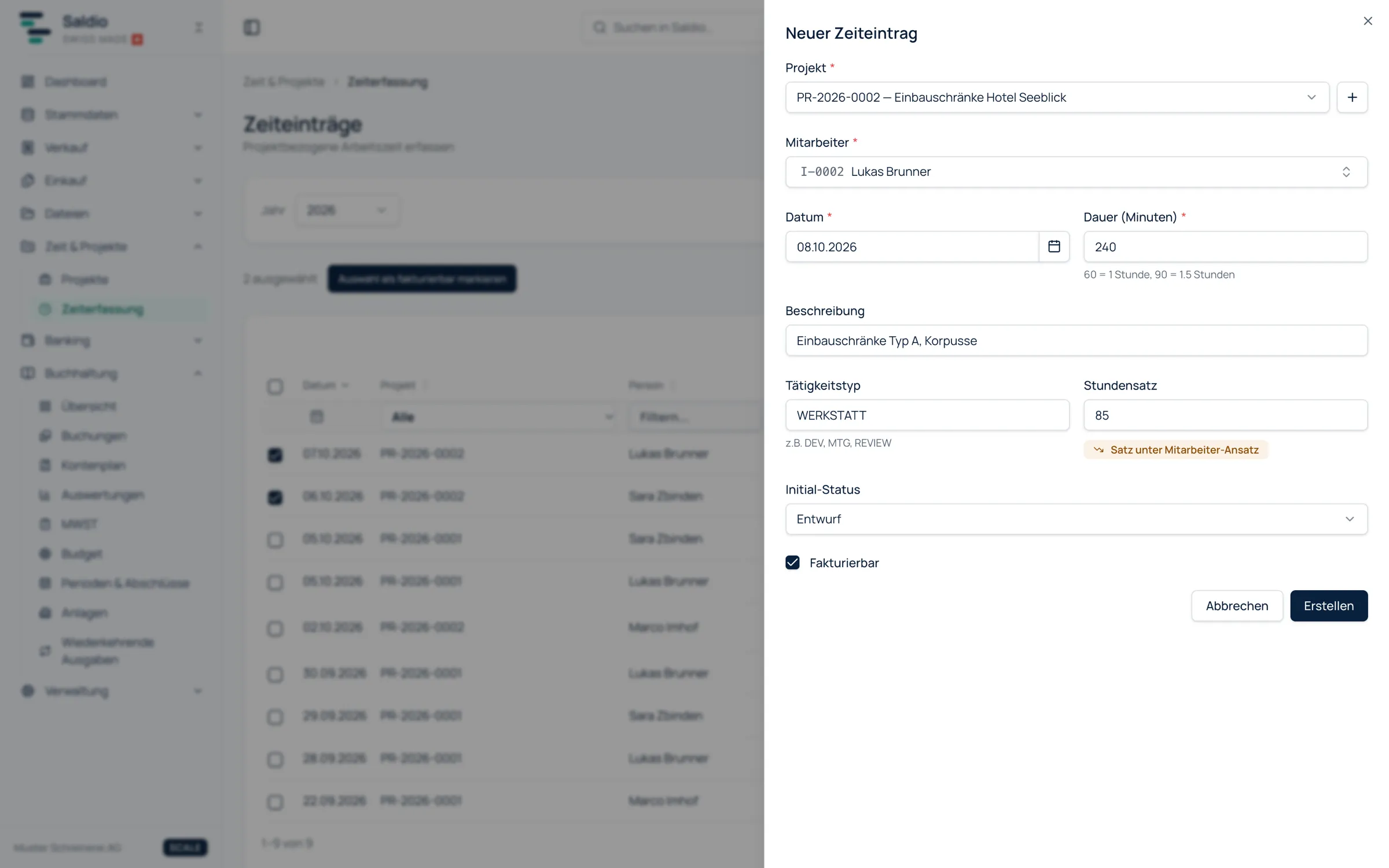
Time tracking lives under Time & Projects → Time tracking. Via New time entry you record:
- Project — every entry runs against a project
- Employee — if your login is linked to an employee, you are preselected
- Date
- Duration (minutes) — 60 is one hour, 90 is one and a half
- Description — what was done, worded so it can appear on the invoice later
- Activity type — a freely chosen code such as
DEV,MTGorREVIEW - Hourly rate — leave it empty and Saldio sets the matching rate
- Initial status — usually Draft
Recording duration in minutes is a deliberate choice. It avoids the question of whether “1.3” means one hour and 18 minutes or one hour and 30 minutes.
Where the hourly rate comes from
If the hourly rate is left empty, Saldio takes the first available value in this order:
- the person’s own rate on this project (override in the project members)
- the billing rate from the employee register
- the project’s default hourly rate
Anyone may enter a different rate. Saldio then shows Rate above employee rate or Rate below employee rate. A discount for a regular customer remains possible, but it does not slip through unnoticed. How the rates are maintained in the employee register is covered in the article on employee management.
Four statuses
Every time entry has a status. It decides whether the entry can be billed:
| Status | Meaning | Next possible step |
|---|---|---|
| Draft | recorded, not yet released | mark as billable or non-billable |
| Billable | released for billing | include in an invoice |
| Invoiced | contained in an invoice | only released by reversing the invoice |
| Non-billable | deliberately not to be billed | revert to draft |
The intermediate Billable step is the actual control point. The person recording time is not necessarily the person who decides what the customer pays. Internal meetings or warranty work are marked non-billable and still remain visible as time worked.
The list
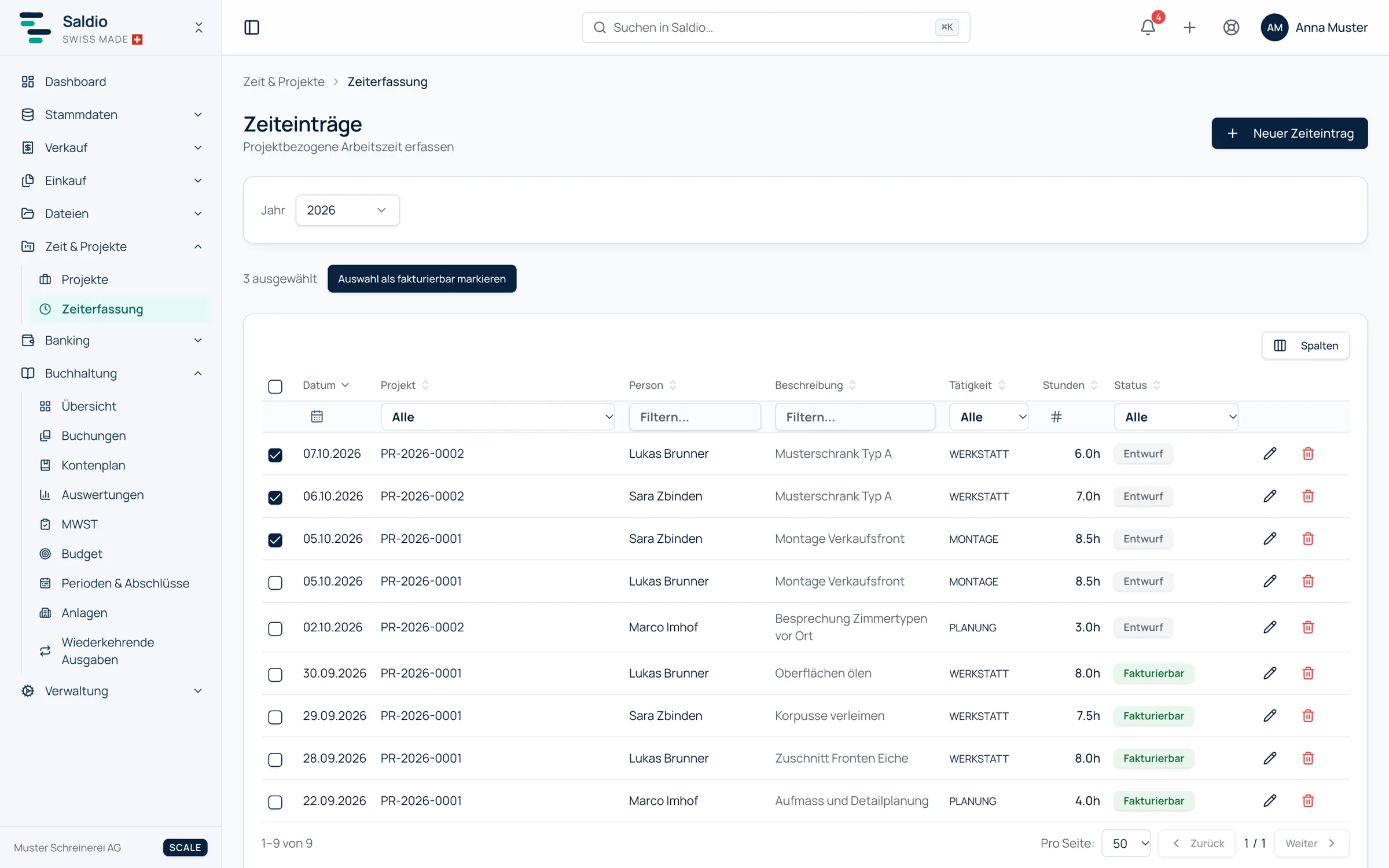
Time tracking shows all time entries across all projects: date, project, description, activity, duration, status, hourly rate and amount.
You filter by project and status and search by description or activity. Group by person bundles the entries per employee, which makes the month-end check easier.
Entries can be handled one by one or in bulk: select the entries to be billed and click Mark selection as billable. Individually there are also Revert to draft and Mark as non-billable.
From the hour to the invoice
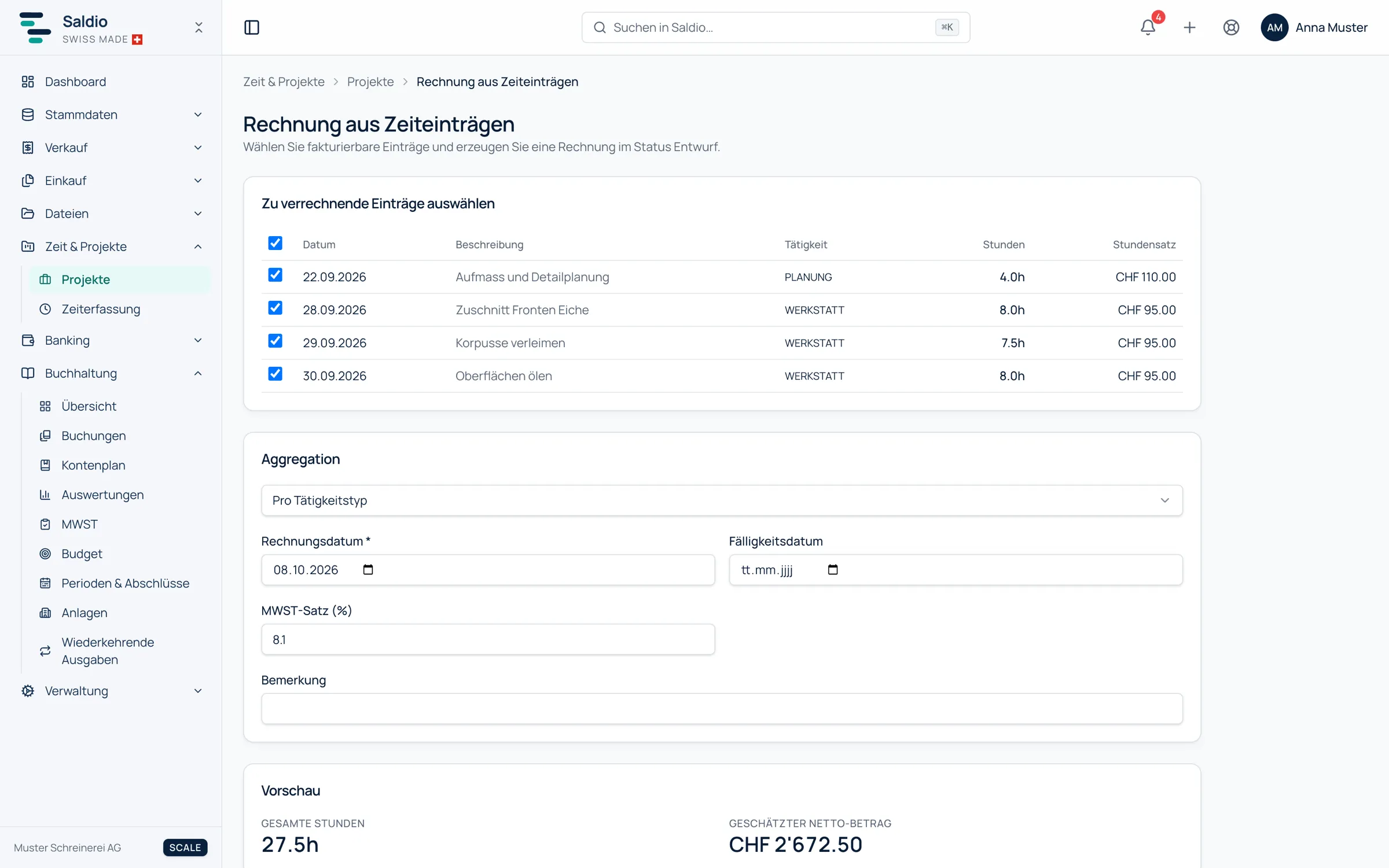
The invoice is created from the project. On the project page, Create invoice from time entries starts an assistant:
- Select the project’s billable entries.
- Choose the Aggregation — how the entries are combined on the invoice.
- Set Invoice date, Due date, VAT rate (%) and a Note.
- Check the preview: Total hours and Estimated net amount.
- Create invoice.
The invoice is created in Draft status. The entries used switch to Invoiced. From here the normal invoicing path applies: review, complete, send.
An example with three entries on the project “Website relaunch”:
| Date | Employee | Activity | Duration |
|---|---|---|---|
| 05.10.2026 | Lea Muster | DEV | 240 min |
| 05.10.2026 | Lea Muster | MTG | 60 min |
| 06.10.2026 | Marco Beispiel | DEV | 180 min |
Depending on the aggregation, this produces a different number of invoice lines:
| Aggregation | Lines on the invoice |
|---|---|
| Per entry | 3 — each entry as its own line |
| Per day and user | 2 — Lea on 05.10. with 5 h, Marco on 06.10. with 3 h |
| Per activity type | 2 — DEV with 7 h, MTG with 1 h |
| Single line | 1 — 8 h in total |
Each line appears on the invoice in hours, at the average rate of the entries it combines. If you want to show the customer every step, choose Per entry. If you want a lump-sum feel, choose Single line. Either way, the entries themselves remain individually traceable in Saldio.
When the invoice was wrong
Invoiced time entries cannot be reset by hand. Saldio then reports: Invoiced entries can only be released via invoice reversal.
If the invoice is reversed, the entries it contained automatically become billable again. That way no hour can be billed twice, and none is lost in a reversal.
What Saldio deliberately does not do
- No time without a project. Every time entry runs against a project. Internal work gets an internal project.
- No attendance tracking. Saldio records project-related working time, not clocking in and out.
- No invoice without review. The assistant creates a draft, never a sent invoice.
- No silent reset. Invoiced entries only become free again by reversing the invoice.
- No automatic release. A person decides what is billable — one by one or by selection.
Conclusion
Time tracking in Saldio is not a separate tool next to the accounting but the first step of the invoice. An entry has a project, a person, minutes and a rate; its status shows at any time whether it has already been billed.
Month-end comes down to three steps: review entries, mark them as billable, create the invoice from the project. How the hours then feed into project costing is covered in the article on project management.
From order to balance.