

How Open Items Management Works in Saldio
What customers still owe, even before the due date: how Saldio tracks open items, offsets partial payments and rounds cash payments to 5 centimes.
Contents
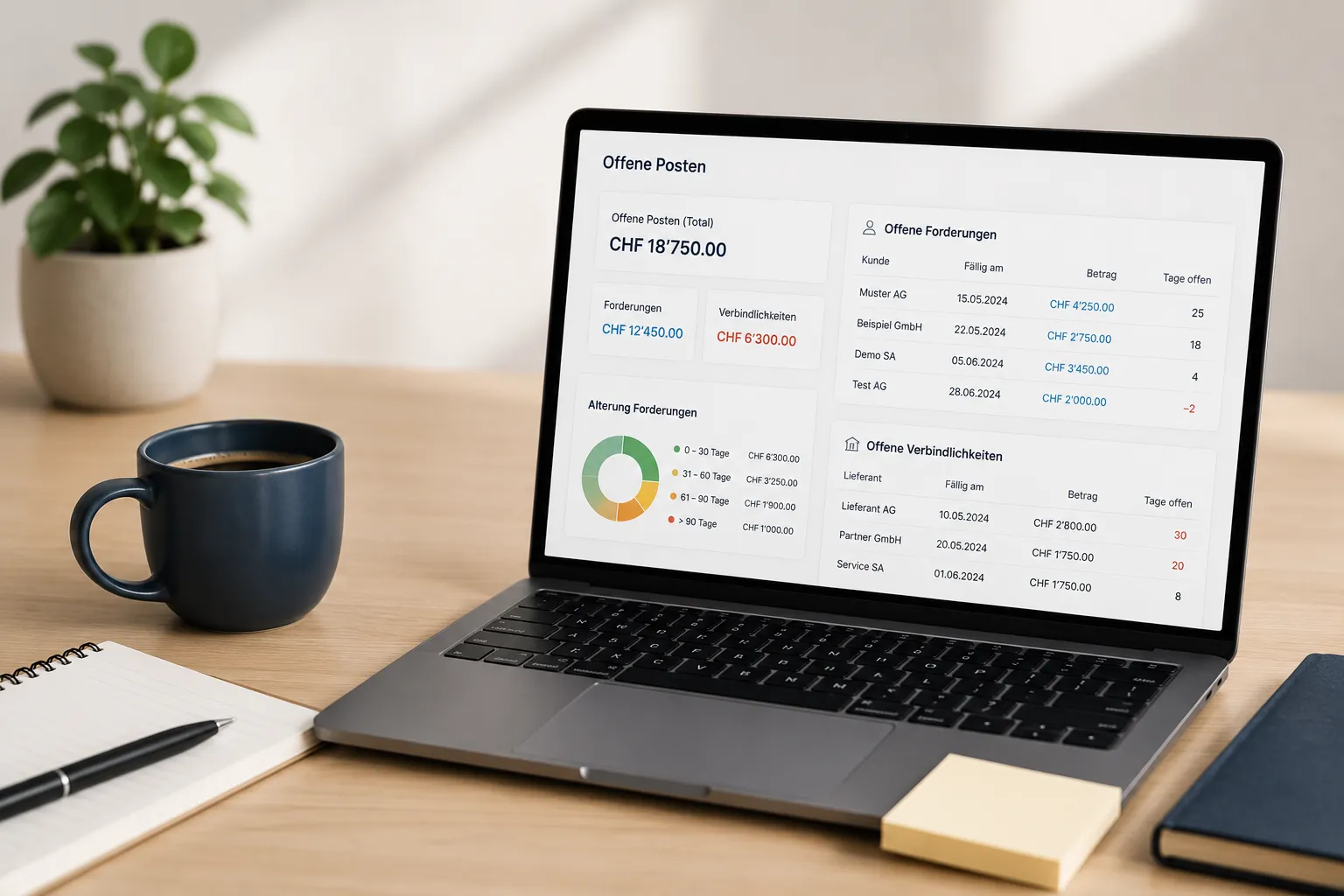
“Who is in arrears?” is an important question. “How much money is still coming in over the next few weeks?” is the more important one.
The first is answered by dunning. The second is answered by open items: all receivables that have been issued and not yet settled — the overdue ones, but also those whose payment period only ends in three weeks. If you only look at the overdue ones, you see a problem. If you look at all open ones, you see your liquidity.
Then there are the small remainders that clutter every receivables list: CHF 24.00 cash discount the customer deducted, CHF 8.50 bank charges, two centimes from a cash payment. This article shows how Saldio handles open items — and how those remainders disappear cleanly instead of sitting around as “partially paid” for months.
No separate list, just an amount on the document
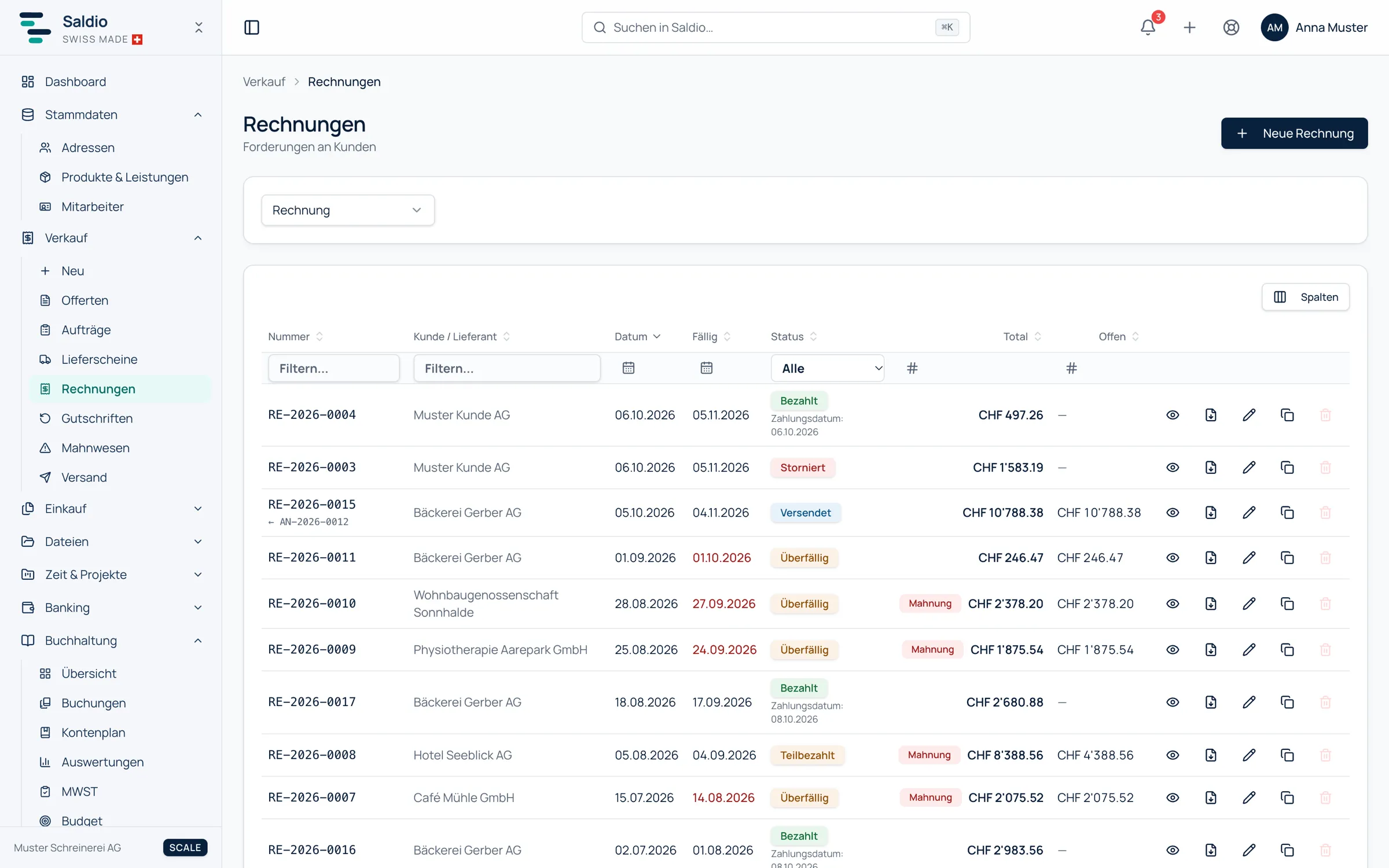
Saldio has no separate open-items list that would need maintaining and reconciling. The open amount lives on the invoice itself: invoice amount minus recorded payments. Every payment, whether recorded by hand or from bank reconciliation, changes it immediately.
Whether an invoice counts as an open item follows from its status:
| Status | Open item? | Why |
|---|---|---|
| Draft | no | not issued yet, no receivable posted |
| Sent | yes | receivable posted, not yet due |
| Partially paid | yes, the remainder | payment received, amount open |
| Overdue | yes | due date passed, amount open |
| Paid | no | fully settled |
| Closed | no | remainder written off to an account |
| Overpaid | no | excess held as customer credit |
| Cancelled | no | void |
Where you see open items
Because the open amount is attached to the document, Saldio shows it in several places, each from a different angle:
- Invoices: the list under Sales → Invoices has an Outstanding column for all sent, partially paid and overdue invoices. Together with the status filter and the Due column, that makes a classic open-items list.
- Sales overview: the figures Open invoices and Overdue invoices sit side by side — the money still to come, and the money that should already have come.
- Contact: on a customer’s address, the Open figure shows the amount this particular customer owes, with the Open invoices table below. That is the view for the phone call. More in the article on customer management.
- Dashboard: open and overdue invoices at a glance, next to income and expenses.
- Dunning: only the overdue ones, but with an ageing report by days past due — described in the article on dunning management.
Recording payments
The usual path for a payment is bank reconciliation: Saldio finds the matching invoice for the bank line, and on confirmation the payment lands on the document. If one bank payment was split across several invoices, it is marked on the document as a Collective payment.
Manually it works via Record payment on the invoice. The dialog shows gross and open amounts and asks for:
- Amount (CHF)
- Payment date
- Payment method — each method is attached to a money account, such as bank or cash, and thus determines the contra account of the posting
- Note, for example the bank reference
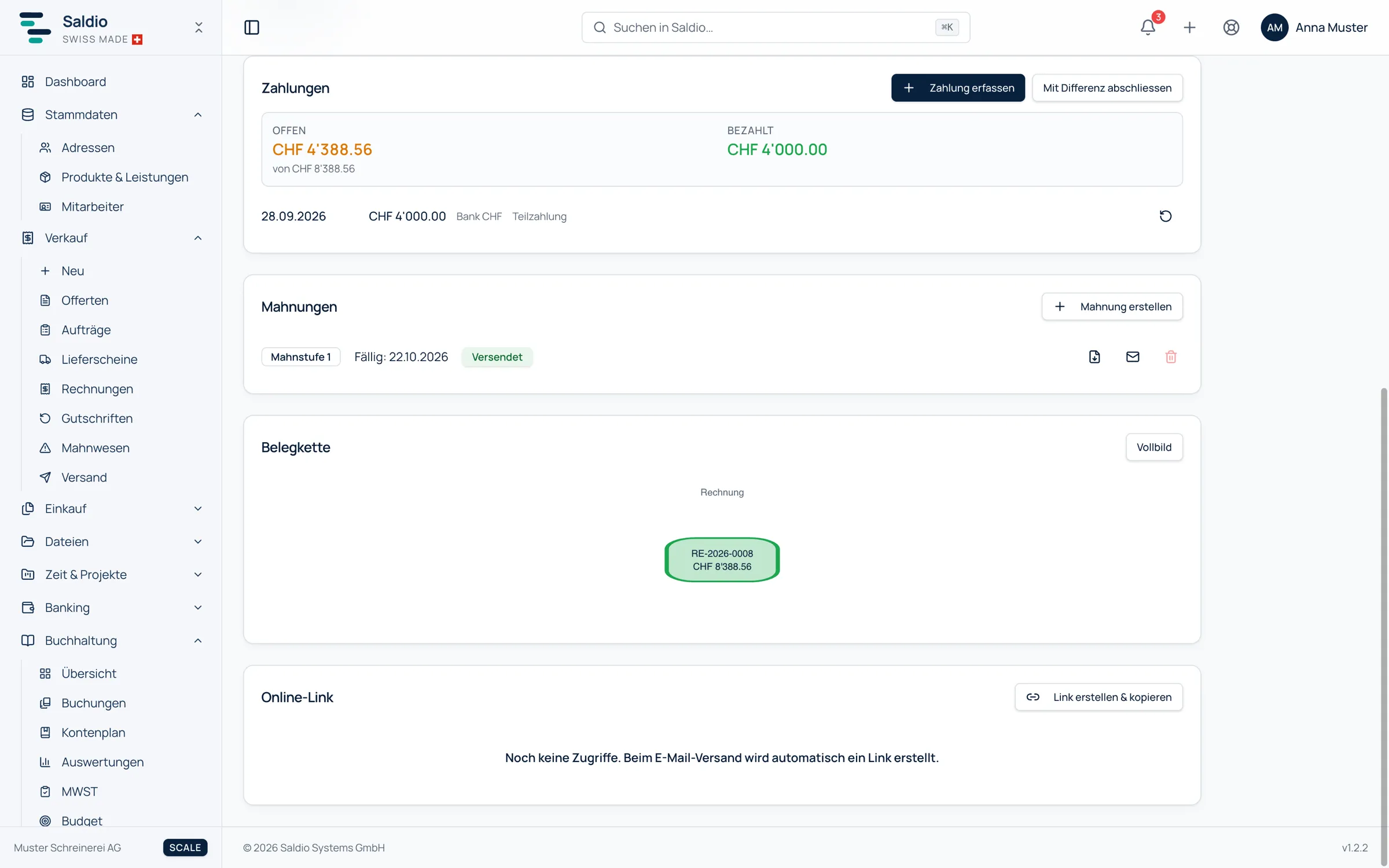
The summary on the document then shows Paid and Open, with the list of all payments below.
Partial payments
A payment smaller than the open amount automatically sets the invoice to Partially paid. There is nothing more to do; the next payment is simply added.
| Date | Event | Amount | Open | Status |
|---|---|---|---|---|
| 01.10.2026 | Invoice RE-2026-0051 issued | 2,400.00 | 2,400.00 | Sent |
| 15.10.2026 | first payment | 1,000.00 | 1,400.00 | Partially paid |
| 30.10.2026 | second payment | 1,400.00 | 0.00 | Paid |
If a payment exceeds the open amount, the dialog warns beforehand. If it is saved anyway, the invoice is Overpaid and the excess is posted as customer credit, to account 2030. The credit appears in the summary on the document.
Close with difference
The most common remainder is small and has a reason: the customer deducted a cash discount, the foreign bank kept its charges, or a rounding amount is missing. These remainders are not really open — nobody will ever pay them.
That is what Close with difference is for. The dialog books the difference amount to a chosen expense or revenue account, and the invoice switches to Closed. Two details make the difference:
- On a revenue account (3xxx), Saldio automatically deducts the VAT share from the tax owed. A cash discount thus reduces not only turnover but also VAT — as it should.
- The date is prefilled with the date of the last payment, so that a discount lands in the same VAT period as the payment.
An example: invoice for CHF 1,200.00, the customer pays from abroad, their bank deducts CHF 8.50 in charges, CHF 1,191.50 arrives. The payment is recorded, the invoice is Partially paid with CHF 8.50 open. Close with difference books the CHF 8.50 to the expense account for bank charges, and the item is done.
If the payment comes through bank reconciliation, it is often even simpler: if the bank amount differs from the open amount, Saldio names the difference itself — cash discount, bank charges, exchange difference or rounding — and offers the posting prefilled. The invoice is then settled without going through Partially paid.
Collecting cash
Anyone who takes cash at the counter or on site has a centime problem: the invoice says CHF 248.37, and there are no one-centime coins in the wallet.
That is what Collect cash (rounded) is for. The action appears on the invoice as soon as cash rounding is enabled under Settings → Company. There you also set the Rounding step — 5 centimes as the Swiss cash standard, or 1 centime — and the Rounding difference account, 6943 rounding differences by default.
The dialog shows Open balance, Rounding and Amount due:
| Amount | |
|---|---|
| Open balance | 248.37 |
| Rounding | −0.02 |
| Amount due | 248.35 |
The invoice itself stays exact to the centime, and the QR payment slip is unchanged. The difference is posted VAT-neutral to the rounding account — as an expense when rounding down, as revenue when rounding up.
When a payment was wrong
A payment recorded incorrectly is not deleted but reversed, with an optional reason. It remains visible in the payment list, marked as reversed, and the event is in the audit log. You then record the payment correctly.
The other side — open supplier invoices — is handled in Purchasing with the same logic: payments with amount, date and method, partial payments, close with difference. More in the article on supplier management.
What Saldio deliberately does not do
- No separate open-items list. The open amount is always the state on the document; there is nothing to reconcile.
- No receivable from a draft. Only issuing makes an invoice an open item.
- No silent write-offs. Every close with difference needs an account and ends up in the audit log.
- No deleting payments. Payments are reversed and remain traceable.
- No cash rounding without the setting. The action only appears once it is enabled in the company settings.
Conclusion
In Saldio, open items are not a report you pull at the end of the month but the running state of every invoice. What is open is shown on the invoice, on the customer, in the Sales overview — and it is correct, because every payment lands directly on the document.
The biggest difference, though, comes from the small tools: partial payments that offset themselves, differences that disappear with the correct VAT, and cash payments that add up to 5 centimes. That way the open-items list stays a list of money that is actually still coming.
From order to balance.