

How Dunning Management Works in Saldio
Find overdue invoices, create reminders in bulk and send them: how dunning works in Saldio – with three stages, reminder fees and an ageing report.

Contents
An invoice that is thirty days overdue is annoying. One that is ninety days overdue without anyone following up is a cash-flow problem.
In many SMEs, dunning does not fail for lack of will but for lack of overview: Which invoices are actually still open? Which ones have already been chased once? And has last week’s payment been booked yet — or are you about to send a reminder to a customer who paid long ago?
Saldio answers these questions on a single page: Dunning under Sales. This article shows how the dunning cycle runs there — from the overdue invoice to the third reminder.
What counts as overdue
An invoice appears in Dunning as soon as three things are true: it has been sent, its due date has passed, and an amount is still open. Partially paid invoices are included with their remaining balance.
Paid, closed and cancelled invoices do not show up. That matters more than it sounds: because incoming payments from bank reconciliation land directly on the invoice, a paid invoice drops off the list automatically. There is no separate dunning list that would need to be checked against the bank before every run.
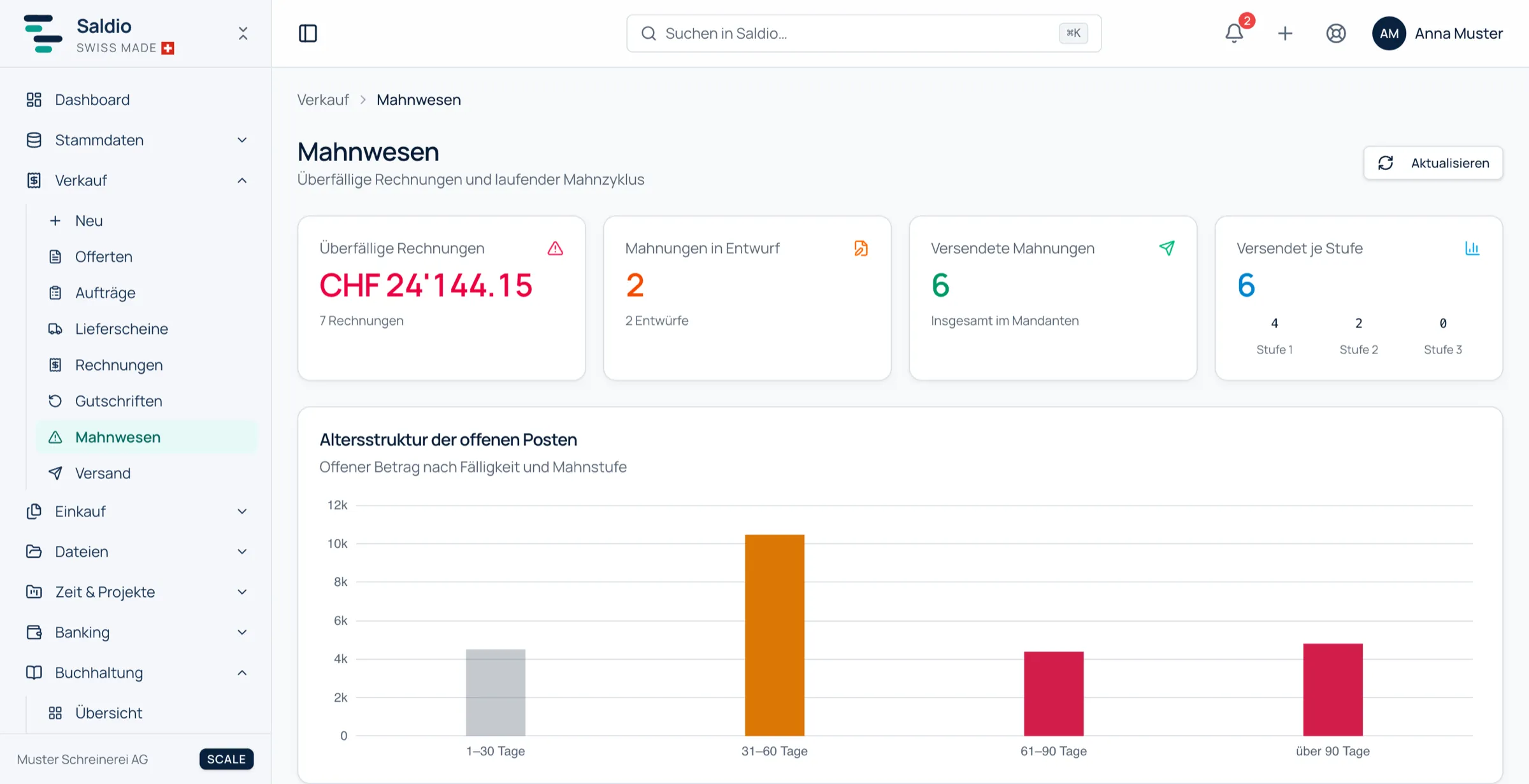
The top of the page shows four figures: overdue invoices with their open amount, draft reminders, sent reminders, and how the sent reminders are spread across the three stages.
The ageing report
Below that sits the ageing of open items: the overdue amount split by days past due — 1–30, 31–60, 61–90 and over 90 days — and, within each bucket, by the dunning stage reached.
This shows at a glance where the problem lies. A lot of money in 1–30 days without a reminder is normal; that is the usual payment delay. Money over 90 days at stage 3 is a case that no longer belongs in accounting, but on the phone or at the debt enforcement office.
Creating reminders in bulk
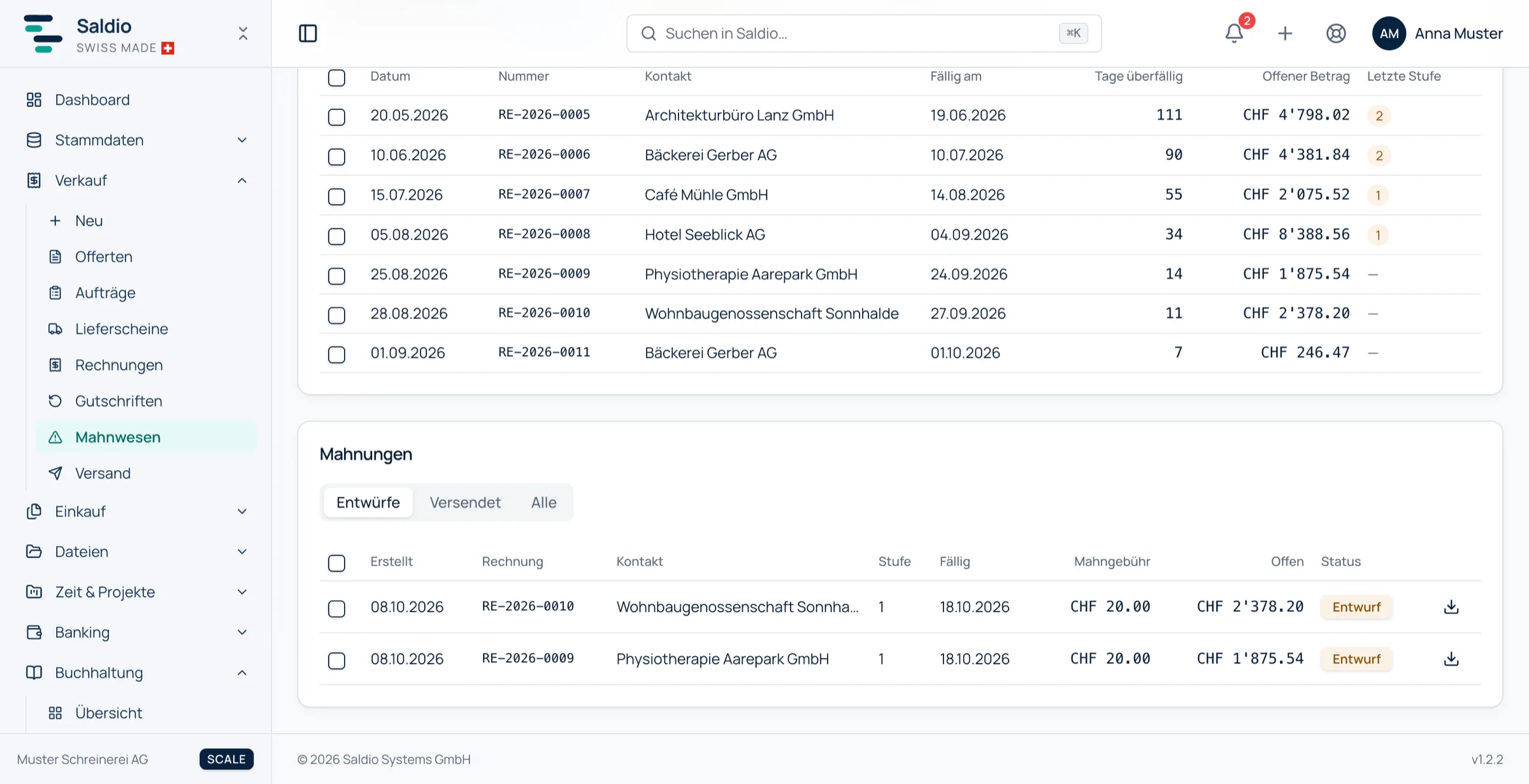
The Overdue invoices table lists date, number, contact, due date, days overdue, open amount and last stage for each invoice. You select the invoices to chase and click Create reminder(s).
The dialog sets two values for the whole batch:
- Due days — the new payment deadline, counted from today
- Default reminder fee — the fee in CHF
You do not pick the dunning stage. Saldio determines it per invoice: an invoice without a reminder gets the first one, an invoice that already has the first gets the second. A batch of twenty invoices at three different stages is a single click.
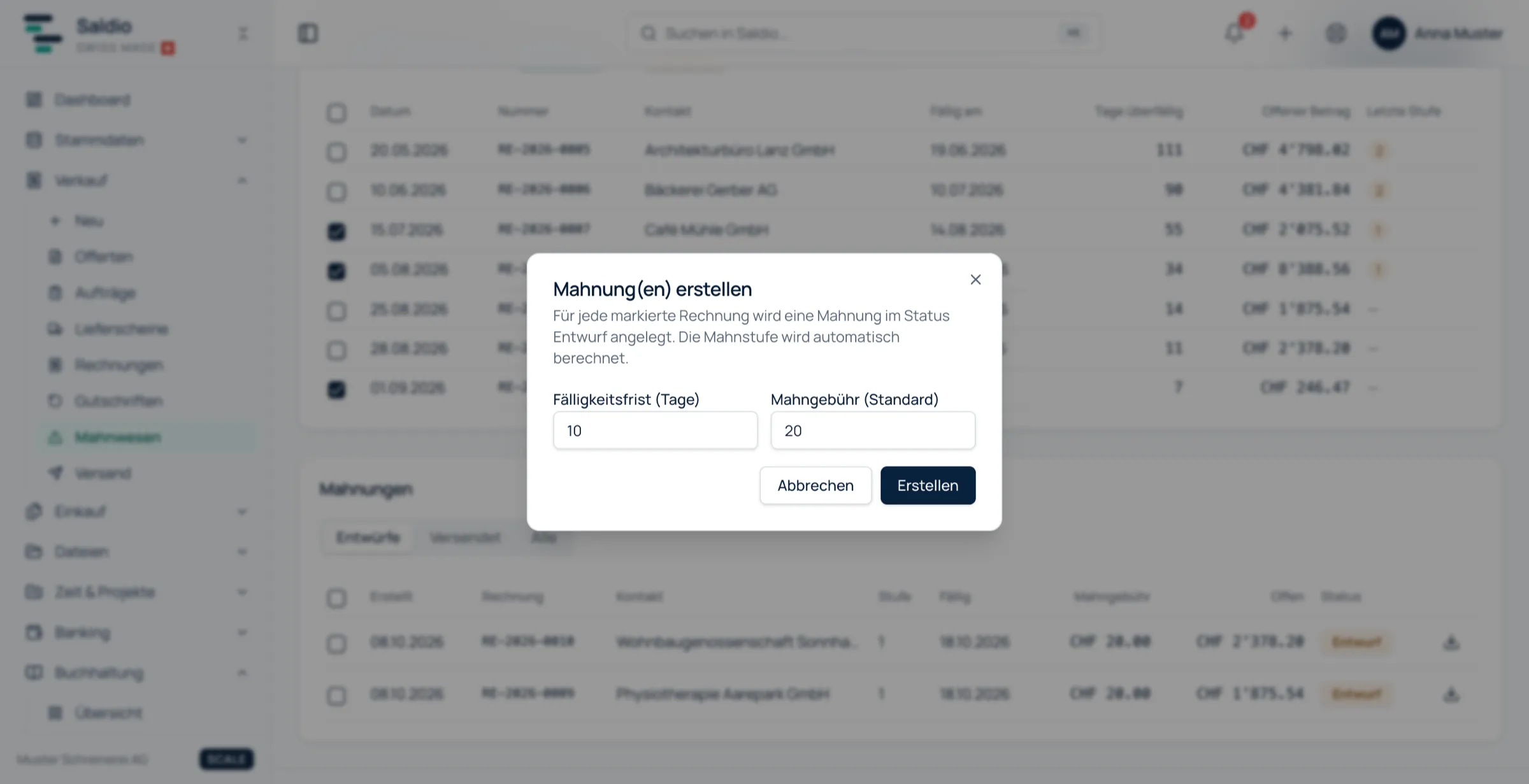
Every reminder starts as a draft. That is deliberate: you can review the reminders, delete a single one or look at its PDF before anything reaches the customer.
Individual reminders can also be created directly on the invoice. There, the stage can be adjusted and a note added.
Sending by email or by post
The Reminders section at the bottom lists drafts, sent and all reminders in separate tabs. There are two ways to send:
Start email send hands the selected reminders to the Dispatch center. It sends them throttled in the background, with the reminder PDF attached. The run continues on the server even if the browser window is closed. Contacts without an email address are skipped and listed with a reason instead of aborting the whole run.
Mark as sent is the path for paper. You download the PDFs, print them and then set the reminders to Sent — without triggering an email.
Each reminder carries its own QR payment slip with the open amount plus the reminder fee. The new due date is in the PDF as well, so the customer sees the current state rather than the original invoice.
The reminder fee in the general ledger
If you charge a reminder fee, you have to book it. Saldio splits the incoming payment automatically: the original receivable is settled first, the rest goes to the configured income account — 3601 reminder fee income by default, changeable in the company settings.
An example: invoice RE-2026-0042 for CHF 1,200.00, second reminder with a CHF 20.00 fee. The customer pays CHF 1,220.00.
| Debit | Credit | Amount | |
|---|---|---|---|
| Settle receivable | Bank | Accounts receivable | 1,200.00 |
| Reminder fee | Bank | 3601 Reminder fee income | 20.00 |
If the customer pays only the original CHF 1,200.00, the invoice is settled and the fee remains unpaid. In practice that is the more common case — and legally the cleaner one if no reminder fees were agreed.
Three stages, then it stops
Saldio has three dunning stages. The text for each stage is stored in the company settings; the first is usually a friendly payment reminder, the third a final deadline with a note on further steps.
After the third reminder Saldio does not create another one. That is a deliberate limit: from this point on it is about collection agencies, debt enforcement or a personal conversation — things that do not belong in accounting software.
What Saldio deliberately does not do
- No automatic dunning run. No nightly job sends reminders on its own. Reminders are only created when someone triggers them, and they only go out after a second deliberate step.
- No reminder for drafts. An invoice that was never sent cannot be chased — the customer has never seen it.
- No default interest calculation. Default interest is not calculated automatically; if you want to claim it, include it in the reminder text or the fee.
- No deletion after sending. A sent reminder stays. The customer has received it, so it must remain traceable.
- No debt enforcement. After stage three the dunning cycle in Saldio ends.
Conclusion
Dunning in Saldio is not a separate system but a view of the invoices that already exist. Because payments from bank reconciliation land directly on the invoice, the list of overdue invoices is always current, and nobody accidentally chases a customer who has already paid.
The actual process is short: select overdue invoices, create reminders, review, send. Saldio determines the stage, Saldio books the fee, and the Dispatch center does the rest.
Which invoices are still open overall — including those not yet due — is covered in the article on open items.
From order to balance.